
Settings lists You first, then This Mac in the desktop app, then Workspace, with the sections of one workspace at a time. The search field above them filters the sections by name.
| Group | Sections |
|---|---|
| You | Account, Sensei, Plan, Security when shown, AI Providers, Token Usage, Skills, Integrations, API keys, Devices, Preferences, Memory and Privacy |
| This Mac | Permissions, Spotlight, Quicklinks, Snippets, Clipboard and Calls, in the desktop app only. See This Mac settings |
| Workspace | General, Members, AI Providers, Token Usage for owners and admins, Skills, Memory, Integrations, Devices, Activity, Usage and Billing. Your Personal space shows only Integrations |
The workspace picker under Workspace shows the workspace's tile and name. Press it for a list with a search field, every workspace you belong to, your waiting Invitations with Join, and New workspace. The current workspace has a check. Picking another workspace keeps the section you are on, or opens General when you were in a You section. The address keeps the workspace you picked.
In a narrow browser window, You and Workspace are tabs above a strip of the sections.
These pages write a workspace's section as Settings > your workspace > Members. Some You sections have their own page:
| Section | Page |
|---|---|
| Plan | Plans and billing |
| AI Providers | AI providers |
| Skills, with Plugins below the skills | Skills and Plugins |
| Integrations | Your own integrations |
| API keys | Authentication |
| Sensei, for Sign as Sensei | Replies in your voice |
| Memory | Memory |
Account
Settings > You > Account holds your profile. Your GitHub Connection is in Settings > You > Integrations.
To change your picture:
- Press Change Picture and pick a JPG, PNG or WebP image up to 2 MB.
- In Adjust profile picture, crop and zoom the image.
- Press Save.
To change your name, edit Name and press Save Changes. Email Address shows the address you sign in with, and you cannot change it here.
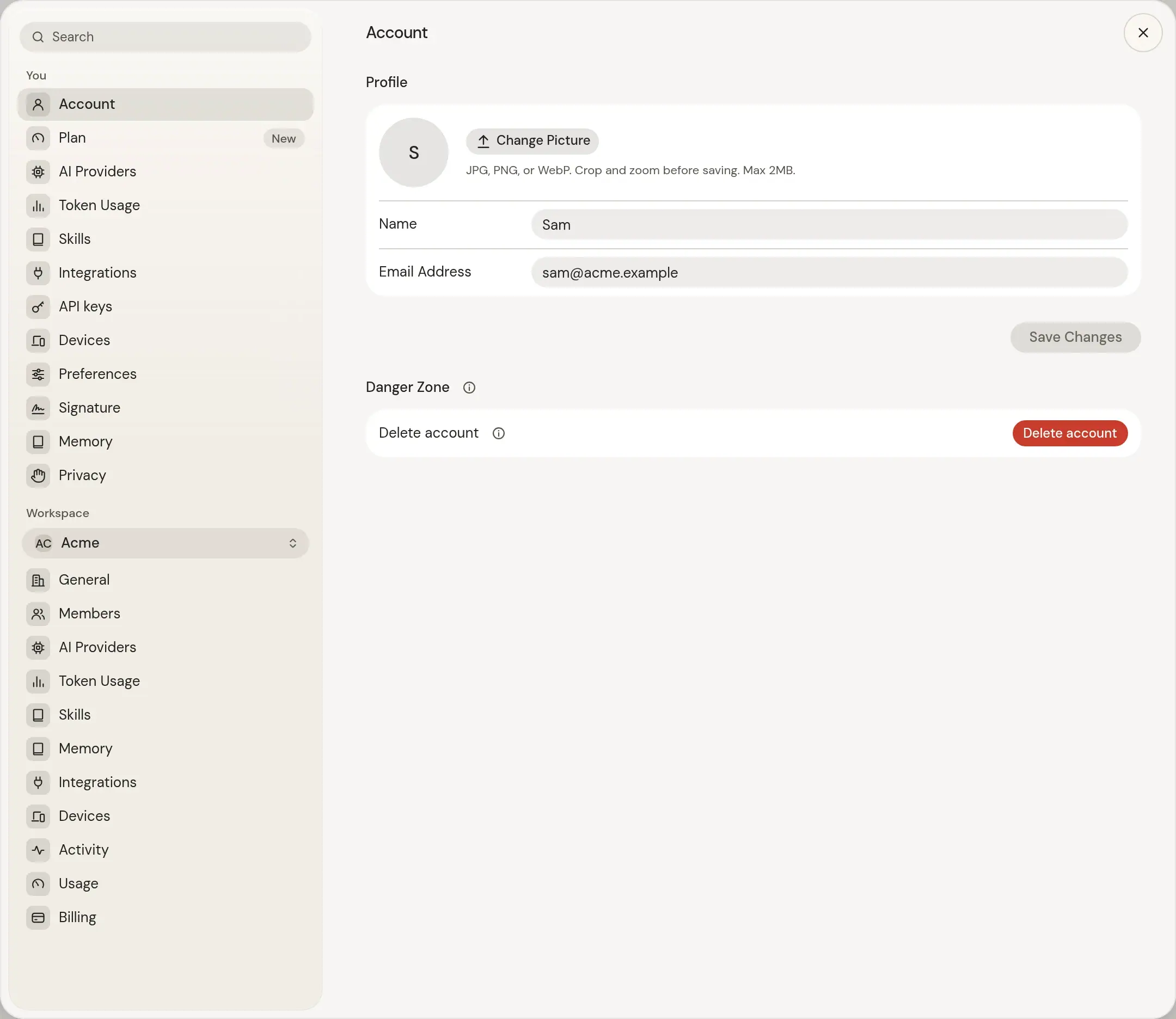
Delete your account
- Under Danger Zone, press Delete account.
- Type your email address and press Delete account.
This deletes your account, your API keys, your GitHub Connection, your own integrations and every card you published from an Overview. It also deletes your personal repositories and Apps, with their tasks and sandboxes. Any workspace where you are the only member is deleted too, with its repositories, Apps, tasks and sandboxes. The dialog names those workspaces before you confirm. It cannot be undone.
If you signed in with Apple, Sensei also revokes its access to your Apple Account. To be sure, remove Sensei from Sign in with Apple in your Apple Account settings.
Sensei refuses while you own a workspace that has other members. Transfer ownership to another member, or delete that workspace, first. See Members and roles. It also refuses while a workspace it would delete has an unpaid invoice or usage still being billed.
Plan
Settings > You > Plan, marked New in the list, shows what your Personal work may use.
- On Personal Free, it lists Sandbox hours left, Sandboxes at once, the sandbox Size you can pick, Sensei free prompts left, or Your own subscription when you hold one, and Personal Crons used. Book a Demo asks for more capacity.
- As a member of a paid workspace, it reads No limits and names the workspace that covers you. Change opens AI Providers, where you pick your Sensei workspace.
Plans and billing explains each limit and who covers you.
Security
When your Settings show a Security section, it holds Cookie Preferences. Press Manage to choose which analytics and tracking cookies Sensei may set.
Token Usage
Settings > You > Token Usage shows your own usage: your Sensei, chat sessions, Delegated Runs and Crons, once they run. Days are in your time zone. A workspace's usage on its Credentials is in Settings > your workspace > Token Usage, for owners and admins.
- Last 7 days, Last 30 days or All recorded picks the period. It starts on Last 7 days.
- Shows picks the count: Turns and runs, the default, or one token count at a time, Output, Input, Cache read or Cache write.
- Work, Repository or Model groups the rows. Choose a row to open it under itself, with its busiest threads or items and its split By Provider.
While you use Sensei free, a line above the rows says how many free prompts are left.
Preferences
Settings > You > Preferences holds Appearance, Language, Timezone and Notifications from Sensei. FYI messages, Thread routing, Watching and Automatic runs are in Settings > You > Sensei:
| Preference | Choices | Default | What it does |
|---|---|---|---|
| Appearance | Light, Dark, Automatic | Dark | The theme, kept in each browser. Automatic follows your computer. |
| Language | English, Simplified Chinese, Japanese, Spanish, Arabic, French, Brazilian Portuguese, Italian and German, each named in its own language | Your device's language when Sensei has it, else English | The language Sensei shows its screens in. Agents reply in the language you write in. |
| Timezone | Automatic, or any time zone | Automatic | The zone Sensei shows your times in, and the clock your Automatic runs follow. Automatic follows the device you use now. |
| FYI messages | Right away, Every 30 min, Every hour, Twice a day | Every 30 min | Messages that need nothing from you wait, then reach you together on one FYI card. FYIs never send a notification. See Triage. |
| Thread routing | Off, Ask, Automatic | Off | Where a new message you write to Sensei goes. See Thread routing. |
| Notifications from Sensei | On or off in this browser | On once you allow notifications for Sensei | A notification in this browser when a card needs you. In the desktop app it is in Settings > This Mac > Permissions. |
| Watching | On or off for each tool you connected, messaging services and tools with events alike | Off for every tool, also right after you connect it | Sensei reads new messages and receives events only from the tools you turn on. |
| Automatic runs | On or off for each run | On for every run | Sensei runs one for you only while it is on. |
Every row saves at once. On a computer, a save that fails shows an error message and the row keeps its previous value. Language, Timezone, FYI messages, Thread routing, Watching and Automatic runs follow you to every device. Appearance and Notifications from Sensei belong to the browser or app you set them in.
In the desktop app, Preferences holds the same rows except Notifications from Sensei, which is in Settings > This Mac > Permissions. On a phone, in the web app, Preferences holds the same rows except Notifications from Sensei. In the iOS app, Preferences holds Appearance, Language and Timezone, Sensei holds FYI messages, Watching and Automatic runs are each a page of their own under Settings > Sensei, and Appearance starts on Automatic. The iOS app keeps its notification switches under This iPhone in Settings. See iPhone.
No setting changes how agents write to you. Your Sensei fits its explanations to your background and to the topic: it reads what it knows about you from your Memory. Agents in chat sessions and deploy chats write for developers.
Thread routing
Thread routing decides where a new message you write in New message, on the Deck composer or in the desktop app's Spotlight goes:
- Off: every new message starts a new thread.
- Ask: Sensei suggests a thread, in grey on the thread button right of the model. Enter still starts a new thread. Tap the grey name, or pick a thread in the button's menu, to send there.
- Automatic: a new message goes to the thread of its subject, and the thread button shows where before you send. When Sensei is not sure, Enter starts a new thread. Pick a thread in the button's menu to send elsewhere.
Only new messages are routed. Replies inside a thread stay there, and review, inbox, ticket and routine threads are unchanged. Today's threads stay as they are. When the thread you send to is working, your message waits in its Up next.
A routed message leaves a receipt, such as Sent to and the thread's name. Press Move on it to send the message to another thread. It runs again there, and what the first turn made stays.
Notifications from Sensei
Turn Notifications from Sensei on for a notification on this device when a card needs you. In a browser it is in Preferences; in the desktop app it is in Settings > This Mac > Permissions. FYIs wait for the digest and never notify. Turning it on asks for permission to notify when it is not allowed yet. The switch reads on only once notifications are allowed. If your browser blocks notifications, the switch is disabled and its (i) says so: allow them in its site settings. A browser without notification support shows a disabled switch too. See Notifications.
Watching
Watching chooses which of your connected tools reach Sensei without you asking: new messages on messaging services such as Slack, Gmail, Telegram, WhatsApp, LinkedIn and X, and the events of tools such as Google Calendar, Todoist or Sentry. On a computer, the (i) after its name reads "Sensei receives events from your integrations and acts proactively, so you don't need to ask." Closed, the row shows the logos of the tools that are on.
- Select Watching. On a computer, the list opens in place below the row. In the iOS app, it opens a page of its own, with the same line under the list.
- Turn a tool on or off. Each switch saves on its own.
The list has one switch for each tool you connected: your own tools from A to Z, then, if you are an owner or admin of the workspace, its workspace tools under "Admins of" and the workspace's name, "get these". Outlook has one row: its switch covers its mail and its calendar and contact events. A tool you did not connect is not listed: connect it first in Settings > You > Integrations. A tool that is on but whose connections all need you to sign in again stays listed with its switch locked, and its logo leaves the row. Your choice is kept: reconnect the tool in Integrations.
The same choice is on each connection in Settings > You > Integrations. On a computer, the connection's card shows Watching with its (i), On or Off and a switch. In the iOS app, the integration's page has a Watching group with the switch, and the same line under it. Changing it in one place changes it in the other. A tool is off right after you connect it, so turn it on there or here. On a workspace connection, only the workspace's owners and admins see the switch.
If a save fails, the switch keeps its previous value, the list says the tool is unchanged, and Try again retries the change. If the tool lost its connection meanwhile, for example on another device, the list says Sensei cannot watch it and Connect opens Integrations at that tool.
For your own tools, the choice is yours, per tool, and the same on every device and in every workspace you belong to. It is not a setting of one connected account: every account you connect for a tool follows it, accounts you connect later too. A workspace tool's switch is per connection, and its events reach every owner and admin. Every tool starts off, whatever Sensei watched before this setting existed.
- On watches only messages that arrive from the moment you turn the service on. Earlier messages, including those that arrived while it was off, are never fetched or replayed by themselves.
- Off pauses Sensei's automatic reading of the service, and the cards and FYIs it would make from new messages. Messages and cards you already have stay. Nothing is deleted or marked read.
Turning a service off disconnects nothing. Your connections stay in Settings > You > Integrations, and Sensei can still use the service's tools when you ask, for example to read a Slack channel.
Automatic runs
Automatic runs lists the runs Sensei makes for you on a schedule, with one switch each, in two groups: Writing style, Taste and Your week in Kosuke, which do their job themselves, then Your Brain and Clean inbox, which tell Sensei. Each row shows its schedule on your own clock, or Off. Press its (i) to read what it does. Every run starts on.
Automatic runs lists each run's schedule, what it does and what turning it off or on again does.
Signature
The Signature section of Settings > You > Sensei holds Sign as Sensei. It is on by default and follows you across workspaces. While it is on, every message Sensei, a chat session, a Cron or a watch sends as you ends with a marker: [Sensei] on its own line after a blank line in Slack, WhatsApp, Telegram, LinkedIn and X, or Sent by Sensei in Gmail, a draft Sensei writes included. A message the marker would take past a network's length limit is not sent: the agent is told to shorten it. Messages you send with your own API key, tickets, pull requests and commits are not signed. Turn it off to send them as written.
Under its switches, a preview shows a Slack message and a Gmail email. Both change as you move the switch. If saving fails, the switch returns to its previous value. On a computer an error message says the setting was not updated; on a phone Try again retries the change.
A reply card has its own Sign as Sensei switch under Your reply, starting from your saved default. Change it for that reply without changing Settings. The draft shows the marker that Send will include.
API keys
Create API keys for the Sensei CLI, the MCP server and the API in Settings > You > API keys, with New API key above Personal API keys. Keys you revoked in the last 30 days stay under Revoked API keys, where Review changes shows what each one created or changed. Authentication explains how.
The same section lists your Connected Apps under Connected apps. These are the AI apps, such as Claude or ChatGPT, that you allowed to act as you through the MCP server. Press Disconnect to cut one off. Its next call is refused.
Devices
Settings > You > Devices lists everything signed in as you that Sensei can cut off: your Macs, your iPhones and iPads, then your Watch and glasses. Remove on one signs it out. It shows in the iOS app too, under Devices in Settings. An empty group says how to add a device, with How to add.
Macs lists each Mac with the Sensei desktop app signed in. A Mac that has never signed in, or that you removed, is not listed. Each row shows:
- The name of the Mac, and This Mac on the Mac you are looking from in the desktop app.
- A status: Online while the Mac is connected and Sensei can use it, In use by Sensei while Sensei is working on it, In use by a task while a task you allowed is working on it, and Offline otherwise. The list keeps itself current while it is open.
- The version of the desktop app, when the Mac was added if it is online, or when it was last seen if it is offline, and "not connected yet" for a Mac that never connected.
Each Mac also has a Keep awake switch, named Keep this Mac awake while connected. It starts on. While it is on, Sensei can reach the Mac on battery, even while you leave it idle, and it uses more battery. The screen still turns off, and closing the lid, the power button or a low battery still sleep the Mac. The switch can change only while the Mac is online. On the Mac you are on, Transcribe again appears when a call recording could not be transcribed; see Record calls.
The list does not show the Mac's macOS permissions. Sensei reads them itself: without Accessibility or Screen Recording, it cannot use the tools that need them and says which permission is missing when it tries.
The … button on a Mac holds Chrome sign-ins and Remove. Choose Remove and confirm to remove a Mac. Sensei stops using it at once. The desktop app on that Mac is signed out and shows sign-in. Signing in again on that Mac adds it back to the list.
Removing the Mac you are on also signs you out of the desktop app on it. Signing in again adds it back.
iPhone and iPad lists each iPhone and iPad where the Sensei iOS app is signed in and allowed notifications or shares your location. Each row shows This iPhone or This iPad on the one you are using, the version of the app and when it was last used. Remove stops its notifications at once, ends its sign-in and deletes its shared location, with no confirmation. The app on it can still show what it already loaded for up to 5 minutes. Sensei also asks that iPhone or iPad to take down your most recent Sensei notifications from its lock screen and Notification Center. It sends this request only to the device you removed, never to your other devices. This is best effort, not a remote wipe: iOS can delay or drop the request, and an iPhone or iPad that is off or offline, or where the app was swiped closed, can keep showing them. Remove does not erase anything else on the device. Removing the iPhone or iPad you are on asks first, then signs you out of the iOS app. Signing in again adds it back.
Watch and glasses lists the ones you signed in with a code from your Sensei account, with when each was last used. Remove signs one out at once, with no confirmation. Signing in on it again adds it back.
If a remove fails, a message says so and the row stays. Press Remove again.
Chrome sign-ins
Sensei browses in the background in its own Chrome on your Mac, with no window. It uses the website sign-ins of the Chrome profiles you allow. Your Chrome stays yours. Sensei's tabs don't appear in it, and Sensei doesn't move your tabs or mouse. Recordings in a thread show Sensei's pages, not your screen. Both browsers act on the same online accounts, so a message Sensei sends is sent from your account. Sensei uses any site this way, LinkedIn and X included. Before it sends, posts or does anything else on a site for you, it checks the signed-in account, the recipient and the exact content against what you asked for, and afterwards it checks the page before it says it worked.
Press Chrome sign-ins on a Mac to choose the profiles Sensei may use. On a phone, the Mac's Chrome sign-ins row shows how many are allowed. The Mac must be online, with a current desktop app and Google Chrome installed. Otherwise the screen says which one is missing.
Every Chrome profile on the Mac is listed, including the ones Sensei has never used. Each has a switch.
- Allowed lets Sensei use the profile. It doesn't mean every site is signed in. Sensei checks a site when it opens it.
- Off means Sensei can't use the profile. Turning a profile off asks first. Sensei stops browsing with it, and Sensei deletes the sign-ins Sensei saved from it on that Mac. Your Chrome stays signed in.
A profile is allowed until you turn it off, and it stays off until you allow it again. Sensei browses in its own Chrome profile on the Mac, made once from the first allowed profile it browses with, and keeps its sign-ins there.
When Sensei's browser is signed out of a site, a card appears: after that first copy, nothing is taken from your own Chrome. Press Sign in with Chrome on it. A window of Sensei's Chrome opens on the Mac at the site's sign-in page, where you sign in as usual, with Google, a passkey or a saved password. Sensei notices the sign-in by itself, on any site. A change on the site in that window only makes Sensei look at the site in its own browser, so it keeps waiting until it sees you signed in. Once it does, it checks the account there and goes on. If Sensei can't confirm the sign-in by itself, it says so and a second card appears. Press I'm signed in on it once you are signed in. Sensei then checks the account again. Google's own sites, such as Gmail and YouTube, get no card. When a site only refuses access, with no sign-in page, Sensei tells you what the page shows and asks for no sign-in.
Signing out of a site in your own Chrome does not sign Sensei out of it. If a change fails, a message says so and the profile stays as it was.
Privacy
Settings > You > Privacy lists your Blocked members, each with when you blocked them and from which workspace. Blocked members are not told. Their messages, tasks and sessions are hidden for you in every workspace you share, and a member you blocked cannot send you messages or cards.
To unblock one, press Unblock beside them, then confirm. You see their content again. To block someone, press and hold a message they wrote, or open the menu of their task or session, and choose Block. See Report and block.
Next steps
See Memory to read and edit what Sensei remembers about you.