
Create an API key
- In the web app, open Settings > You > API keys.
- Press New API key, beside Personal API keys.
- In Key name, type a name that says where the key will live, such as
ci-runnerorlaptop-cli. Two active keys cannot share a name. - Under Access, tick at least one area the key needs.
- Beside Ends in, pick 30 days, 90 days or 1 year. Create stays off until all three are set, and the line beside it says what is still missing.
- Press Create, or press Enter in Key name. Cancel closes the form.
- In API key created, press Copy, and store the key somewhere safe, such as your CI's secret store. Sensei shows it only once. Press Done.
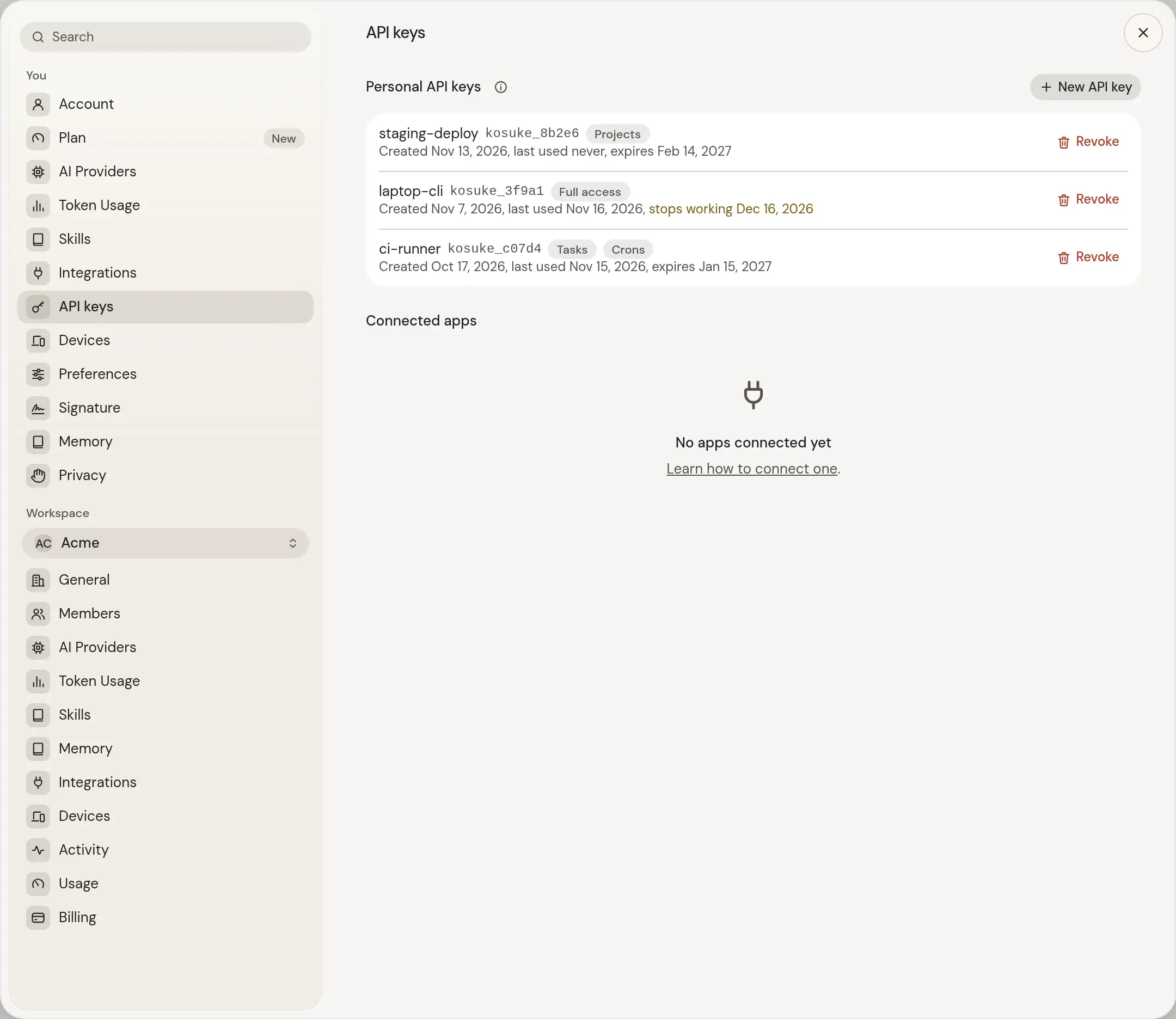
Every key stops working on its end date. Make a new one before then. The list shows each key's first characters, so you can tell keys apart without seeing them whole.
A key made before scopes existed has Full access and stops working 30 days after scopes shipped. Its row shows the badge and the date it stops. Make a new key with the access it needs to replace it.
Send the key
Put the key in the KOSUKE_API_KEY environment variable and send it as a bearer token:
curl -s https://app.kosuke.ai/api/user/profile \
  -H "Authorization: Bearer $KOSUKE_API_KEY"
The CLI reads KOSUKE_API_KEY too. kosuke auth login saves the key for the CLI instead. The MCP server signs you in through the browser. It also accepts an API key as a bearer, which suits a client that has no browser.
The OpenAPI document, the /api/meta liveness check, the public share-link routes and the invitation preview take no key. Sign-in routes and webhooks do not take one either. Every other route needs one.
A missing, revoked or expired key gets 401 UNAUTHORIZED. A 401 with the code GITHUB_RECONNECT_REQUIRED is about your GitHub Connection, and your key still works.
What a key can reach
- It acts as you. Sensei records what it does as your actions, in Activity too.
- It reaches every workspace you belong to, with your role in each. An action that needs an owner or admin needs that role on your account.
- It reaches only the areas it was made with. Anyone who holds it can do there what you can do:
- Tasks and sessions: read tasks, file tickets, start and steer sessions.
- Personal Crons: create, change and pause your Crons. Workspace Crons need Full access.
- Memory and Skills: read and change your Memory and your Skills, and read a workspace's Memory (admins also save it).
- Project settings and QA Guide: read project settings and Change history, and change the QA Guide of projects you can edit. A project's setup, services, environment, imports and Deploys stay with a workspace admin in the web app, whatever the key.
- Mac and browser: drive your Macs and their signed-in Chrome from the kosuke CLI, on each Mac whose CLI switch is on in Settings, Devices. See From the kosuke CLI.
- Every key can read your profile, your workspaces, their members, projects and models, use the MCP server, and revoke itself.
- Everything else needs a Full access key, except what the web app alone does. A key that tries an operation outside its access gets 403
API_KEY_SCOPE, and the message names the access it lacks. - Lists that can span workspaces, such as your projects, return results from all of them.
- A request that creates something inside a workspace names that workspace. The API calls a workspace an organization, so creating a project takes its id as
orgId, and workspace routes take it in the path.
Your API key is not a provider credential. Claude, Codex, GLM, Kimi and DeepSeek credentials belong to the workspace, and you connect them under AI providers.
What only the web app can do
A few actions need you signed in to the web app. A key that tries one gets 403 FORBIDDEN.
| Area | Where to do it |
|---|---|
| API keys and Connected Apps | Settings > You > API keys |
| Changing your profile or avatar, and deleting your account | Settings > You > Account |
| Creating, renaming, leaving or deleting a workspace, and its logo | The + beside Workspaces in the sidebar, and Settings > your workspace > General |
| Inviting and removing members, changing roles, and transferring ownership | Settings > your workspace > Members |
| Billing | Settings > your workspace > Billing |
| Your GitHub Connection and connecting an integration | Settings > Workspace > Integrations for workspace integrations (choose Personal for your own work), and Settings > You > Integrations for GitHub and your own |
| Your Sensei Chat, with its Up next, and the buttons on needs | The Sensei page |
| Changing a project's setup, services or environment variables, importing a config, and starting or answering a Deploy | Project settings and the Deploy Chat, as a workspace admin. The key gets 403 SETTINGS_ADMIN_ONLY until API keys get a project settings scope. |
What only the web app can do lists every such request, with the alternative an API key can use where one exists.
Revoke a key
- Open Settings > You > API keys.
- Press Revoke on the key's row.
- Press Revoke API key to confirm.
Anything using the key loses access at its next request. Create one key per machine or automation, so you can revoke one without breaking the others.
Review what a revoked key changed
After you revoke a key, the section shows what it created or changed. Keys you revoked in the last 30 days stay under Revoked API keys: press Review changes on one to see it again.
- Personal Crons lists the Crons the key made or changed, and how many still run as you. Pause all pauses the ones still on.
- Each change to your Memory, your Skills, a QA Guide or project settings has its own row. Restore puts back the earlier version, and Remove deletes a Skill the key made. A change whose old value was never stored reads Cannot be restored, with what to do instead.
Sensei records what each key does only from the day it started recording, and says so for anything earlier.
An AI app you connected to the MCP server holds a Connector Token, not an API key, so it is not in this list. It is under Connected apps in the same section. Press Disconnect on its row, then Disconnect app to confirm. It loses access at its next request.