
Tools that belong to one member, such as their Gmail, Google Drive, Dropbox, Linear, Jira, Confluence, Asana, ClickUp, Todoist, Figma, Notion, Cloudflare, Tailscale, Higgsfield, ElevenLabs, Twilio, LaunchDarkly, Prospeo, 1Password, Xero, QuickBooks, Zoho CRM, Zoho Books, Zoho Invoice, Mercury, Granola, Rho, Pocket, Typefully, FreshBooks, Attio, Calendly, Canva, Fathom, Zoom, Microsoft Teams, Outlook, Salesforce, Miro, Monday, Telegram, WhatsApp or Excalidraw, are connected in Settings > You > Integrations and are private to them. See Your own integrations.
Agents in tasks, Cron Runs, Deploy Chat and Sensei can use an Integration. So can a helper agent a chat turn starts with full access, called a Delegated Run: it reaches what its turn reaches. A read-only one has no network, so it has nothing to call with.
Agents find the connected tools with kosuke integrations list and run one with kosuke integrations call. They look the tools up each time, so a new Integration is usable at once, in tasks already running too. When no listed tool does the action on a Composio toolkit, an agent can send one request straight to the vendor's API with kosuke integrations request, through the same connection and rules. Composio adds the credentials on the server, so the agent never holds a token.
Who an agent acts as
| Work | Connections it uses |
|---|---|
| Sensei with no workspace named; Personal Crons, sandbox and Sensei Thread runs | Your personal integrations and the Personal space’s workspace integrations |
| Your own Turn in a Personal project | Your personal integrations and the Personal space’s workspace integrations |
| Turns Sensei sends and Deploy Chat in a Personal project | The Personal space’s workspace integrations only |
| A Turn or Deploy Chat message another person sends in a Personal project | None of your connections |
| Sensei naming a workspace; your own Turn in a workspace session you are the Assignee of | Your personal integrations and that workspace’s integrations, never the Personal space’s |
| Workspace Crons, Deploy Chat, a Turn another member sent and unassigned work in a workspace | That workspace’s integrations only |
A run never uses another member’s personal integration.
Personal
Choose Personal in the Settings Workspace picker to connect workspace integrations for your own work. Personal is a workspace of one, and only you can manage its integrations. The picker offers Integrations only there, even before you have a Personal project.
These connections serve Sensei when you name no workspace, your Personal projects and your Personal Crons, both sandbox runs and Sensei Thread runs. Your own Turns in Personal projects reach your personal connections too. Turns Sensei sends and Deploy Chat use the Personal space's workspace integrations only. A Turn or Deploy Chat message another person sends reaches none of your connections. When you name a workspace to Sensei, it uses that workspace's integrations and your personal ones, never the Personal space's.
A restricted integration needs a grant for the workspace the call runs in, Personal included. A Superadmin can grant your Personal space access in the admin panel.
Connect a tool
The Integrations section lists the tools this Sensei deployment offers, one row each. A tool that cannot be connected the way Sensei connects tools is not listed.
With many tools, type in Search integrations to find one by name or description, or press a filter: All, Needs attention, Connected or Not connected. Each filter shows how many tools it holds. Tools that need attention, such as Reconnect required, come first, then connected ones. Press a row to open its details and controls.
A search can also find tools Sensei does not offer yet. Each has Request integration followed by its name; press it to ask for it, and the row reads Requested. For a tool no search finds, press Request integration after "Missing an integration?" at the top of the page: it opens an email to support@kosuke.ai. Every member can request an integration. A search also shows matching tools from your own Settings > You > Integrations, such as GitHub.
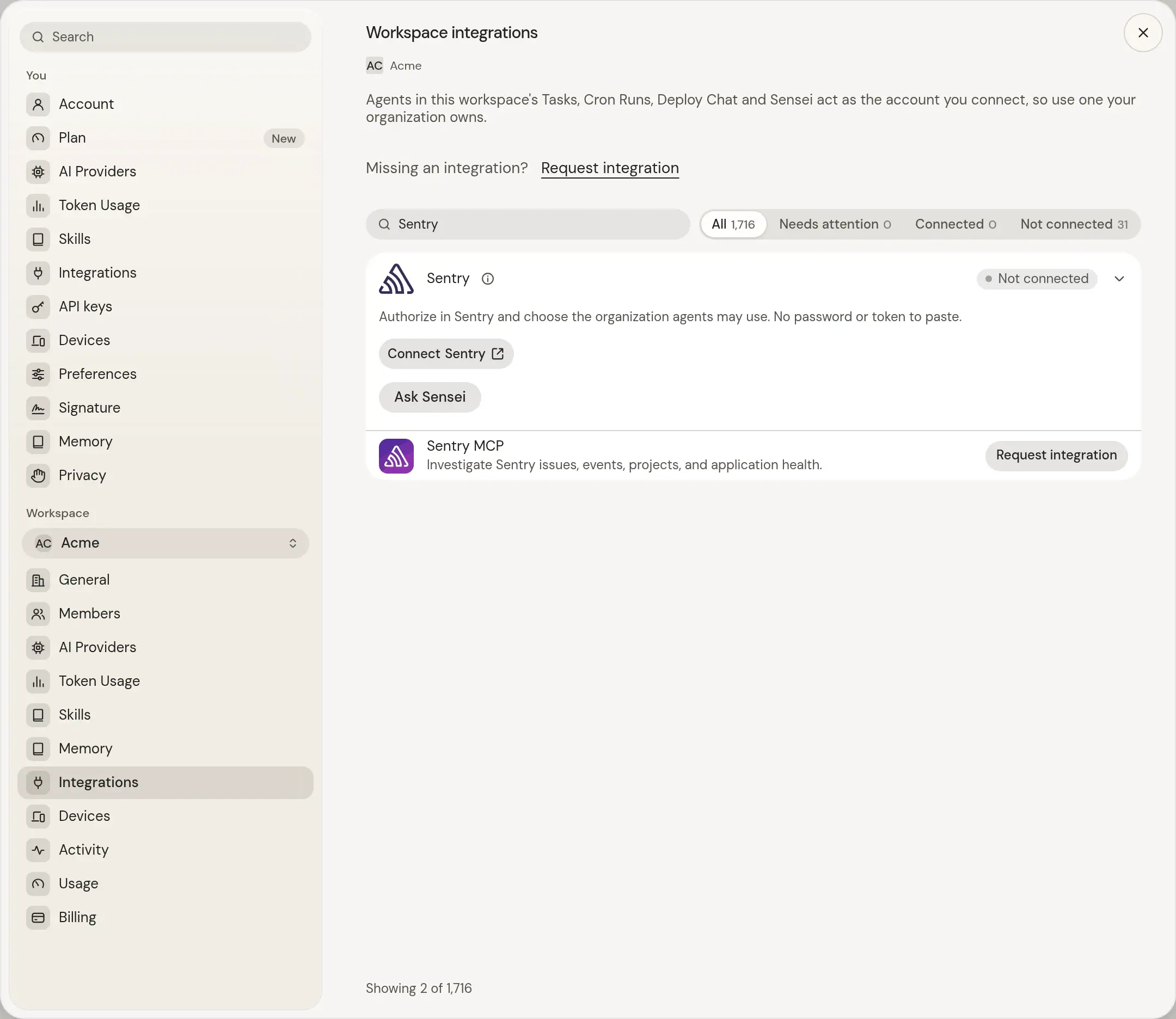
The page and Connect dialog warn that agents, Crons and Deploy Chat act as the account you connect. Connect an account the organization owns. In Personal, that account acts for your Personal projects, Personal Crons and Sensei. Every member sees Agents act as followed by the account on a connected card.
- Open Settings > Workspace > Integrations and choose your workspace or Personal.
- Click the tool's row to open it, then press Connect. The button names the tool, such as Connect Sentry. If the tool uses a sign-in page, your browser leaves Sensei to authorize.
- Sign in to the tool if asked, and approve the access. The tool asks for its default permissions. You cannot narrow them here, so to limit what agents can reach, authorize with an account or a key that can reach only that.
- You come back to the row. If the tool has nothing to choose, the card reads Agents act as followed by the account.
- PostHog asks for a personal API key and your region, US or EU, on its own page instead of an approval. Create the key in PostHog with the narrowest scope you can: agents reach every project the key can see, and a call names the project it wants.
- Meta Ads asks for an access token on its own page. Create the token in Meta with read access to ads only.
- Stripe asks for a restricted key in the form in the row. See Stripe. Shopify asks for its store app's Client ID, Client secret and the store's subdomain. See Shopify.
- Datadog asks for three things on its own page: your Datadog site, an API key and an application key. Create both keys in Datadog under Organization Settings, ideally for a service account with only the access agents need.
- Some tools reach several organizations, workspaces or sites. If yours does, the row opens and lists them by name. Pick the one agents may use and press Connect. Nothing is preselected.
For tools that open their own page, you sign in or enter a key there. Self-hosted Sentry takes its server address and internal integration token in Sensei. See Sentry. Press Cancel in the open row to drop an authorization you started and have not finished. An authorization you leave unfinished lapses after 10 minutes. While you are away, the row reads Connecting and updates on its own.
Only the admin who started an authorization can choose from its list or cancel it. Other admins see Connecting until it finishes. Starting a second tool ends your first unfinished one.
An authorization belongs to the workspace whose Integrations you started it from. If you come back to another workspace's Settings, Sensei names the workspace the authorization belongs to. Open Integrations in that workspace's group to see the connection or finish the choice there.
Connect with an app's client ID and secret
Some tools connect through an app instead of a person's account. You create the app at the tool, in its developer dashboard, and give it the permissions agents need. No one signs in: the connection acts as that app for the whole workspace, so these tools are workspace only and are never offered in Settings > You > Integrations.
- Create the app at the tool and copy its client ID and client secret.
- Open the tool's row in Settings > Workspace > Integrations and press Connect.
- Paste the client ID and secret. If the dialog asks for an environment, such as live or sandbox, choose the one the app belongs to.
- Press Connect. Sensei checks the app with one read before it saves the connection.
If the tool refuses the client ID or secret, the dialog says so and nothing is saved. Check both, and that they match the environment you chose, then try again. Press Ask Sensei in the dialog for help: paste the client ID and secret only in Settings, never in chat.
Agents reach whatever the app can reach, so give it only the permissions you want them to have.
Sensei never stores or shows the secret. It hands the client ID and secret to Composio, its integration broker, which keeps them for this one connection. The secret does not appear in Sensei's database, logs, Settings or agent output. Disconnect removes the connection and its app settings at Composio. To use a new secret, or after the card reads Reconnect required, Disconnect, then Connect with the app's current client ID and secret. Revoking the secret in the tool's developer dashboard is a separate step.
Add more than one connection
Google Search Console, Google Analytics, HubSpot, Intercom and Buffer can be connected more than once, for example two Google accounts, two HubSpot accounts, two Intercom workspaces or two Buffer accounts. Once one is connected, press Add another connection on its row. Each connection is its own labelled card, and you disconnect or reconnect each on its own. The ad platforms take one connection per ad account, Google BigQuery one per Google Cloud project, Supabase one per organization, Shopify one per store, Better Stack one per team, Neon one per organization, Langfuse and Amplitude one per project, Braintrust one per organization, Resend one per team, Apollo one per Apollo account, and Sensei admin data one per deployment. Stripe takes one connection per account and mode, so a test key and a live key of one account are two connections. Sentry takes one sentry.io connection and one self-hosted connection per workspace, shown together in the Sentry row. PostHog, E2B, DigitalOcean, Ahrefs, Datadog, PagerDuty, Vercel, Railway, Render and PayPal keep one connection each.
A label is read from the tool where it names the account, else typed at Connect. Labels are unique among a tool's connections in a workspace. Press the pencil icon to rename one; its tooltip reads Rename. Agents tell connections apart with an alias, short id or scope:label, such as workspace:Engineering. Each card shows how agents call it.
Your own API endpoint
Some tools can call an API other than the vendor's own: your own server, a regional site or your company's gateway. For these, the Connect form takes the endpoint agents and Sensei call. Leave it empty, or keep the default choice, and the connection uses the vendor's own API, as before.
| Tool | What you set | What it means |
|---|---|---|
| Stripe | API endpoint | Your company's gateway or proxy in front of api.stripe.com, or a Stripe-compatible service. |
| E2B | API endpoint | Your self-hosted or BYOC (bring your own cloud) E2B. |
| Daytona | API endpoint | Your self-hosted Daytona: the address of its API, such as daytona.example.com/api. Leave it empty for Daytona's own API (app.daytona.io/api). |
| Langfuse | API endpoint | Your self-hosted Langfuse. Enter the host only, with no path. It replaces the Langfuse Cloud region. |
| Braintrust | API endpoint | Optional. Leave it empty for an organization hosted in the US (api.braintrust.dev). Enter api-eu.braintrust.dev for one hosted in the EU, or your self-hosted data plane's API URL from Settings > Data plane in Braintrust. |
| PostHog | The region, or API endpoint | The region is US or EU for PostHog Cloud. The endpoint is your self-hosted PostHog, and it replaces the region. |
| 1Password | Connect server | Optional. Leave it empty to use 1Password's own service (my.1password.com) with a service account token. Enter your 1Password Connect server's address to use it, with its access token. 1Password is connected in Settings > You > Integrations. |
| PagerDuty | The region | The service region of your PagerDuty account: US (api.pagerduty.com) or EU (api.eu.pagerduty.com). |
| Sentry | Where Sentry runs | sentry.io for the US, de.sentry.io for the EU, or Self-hosted for Sentry 24.x or newer. For self-hosted, enter its https address and an internal integration token. A path prefix is allowed. Sensei's own servers send every request for it. See Sentry for the token's permissions. |
Jira and Confluence Data Center cannot be connected yet.
An endpoint must use https. Sensei adds https:// when you leave it out, and refuses http://. Enter only the address: no user name, no ? query and no # part. The name needs a dot, such as stripe-gw.example.com. A path after the host is allowed, such as https://gw.example.com/stripe, except for Langfuse.
With an endpoint, the key check, the account read and every agent call of that connection go to it, and nothing goes to the vendor's own API. On Stripe's own API, Sensei still takes only a restricted key (rk_). With your own endpoint it takes any key except a full secret key (sk_live_ or sk_test_).
The server must be reachable from the public internet. Sensei refuses an endpoint whose name points to a private, internal, loopback, link-local or cloud metadata address, and one that answers with a redirect: Sensei follows no redirects, so the key never leaves for another host. An endpoint that does not answer within 10 seconds is refused too. Each refusal keeps your fields filled, so you can fix the address and press Connect again.
For self-hosted Sentry, Sensei's own servers send every request, including token checks and agent calls. Composio does not send them. For the other endpoints, two kinds of servers call your endpoint:
- Composio's servers send the agents' calls and the key checks, with your key.
- Sensei's servers send one check without any key when you connect.
The row shows the endpoint's host in parentheses after the account, and the card shows it as Endpoint, or Server for self-hosted Sentry. With no endpoint, the card's Endpoint reads the vendor's own API, such as Stripe's own API. Where a tool takes several connections, the same account through two endpoints makes two connections.
To change the endpoint, Disconnect, then Connect again. Reconnect keeps the endpoint the connection was made with. Only a workspace admin can set the endpoint of a workspace connection. Members see its host on the row and the card's Endpoint or Server fact, but cannot change it.
Addresses to allow
Neither Sensei nor Composio sends from fixed addresses, so there is no list of addresses to allow. Your server must accept calls from the internet. Protect it with the key or token you enter at Connect, not with an address allow-list.
Custom MCP servers
Add a remote MCP server by its URL, and agents can use the tools it offers, like those of a listed tool. Add your own in Settings > You > Integrations: like your other personal integrations, it serves only your own work (see Who an agent acts as). Owners and admins add one for the whole workspace in Settings > Workspace > Integrations; members see the workspace's servers read only. Add MCP server is the first row of both lists.
Sensei calls the server over HTTPS with Streamable HTTP. A server on a private address, one that answers with a redirect, and one that speaks only the older SSE transport cannot be added, and a local stdio server cannot either.
- Press Add MCP server.
- Enter a Name and the Server URL, such as
mcp.example.com/mcp. - Under Sign-in, choose None for a server that needs no credential, Sign in for one you sign in to at the server, or Token for one that takes a token in a header. A token goes in the Authorization header unless you name another, and is sent exactly as you type it, so include
Bearerwhen the server asks for it. - Press Connect. With Sign in, the button reads Sign in at and the server's host: Sensei opens the server's sign-in page in a new tab, where you sign in with an account agents may act as, and the form continues when you are done. If the browser blocks the tab, press Open sign-in page. Sensei then asks the server for its tools. When it cannot, the form keeps what you typed and says why, such as a server that could not be reached, did not answer in 20 seconds, or refused the token.
- Review the tools. Each shows what it does as the server marks it: Reads, Changes data or Deletes data. Every tool agents can call starts on, including tools that change or delete data. Turn off any tool agents should not use, then press Save. A tool the server changes between your review and Save is stored off and marked Changed.
A server that asks you to sign in when you chose None says so: press Sign in instead. A server that asks you to sign in but does not let Sensei sign in there says so too: press Use a token and paste one the server gives you. When you cancel the sign-in at the server, the form keeps what you typed: press Try again.
Sensei keeps the token encrypted and never shows it again: Settings shows at most its last four characters. After a sign-in, Sensei keeps the access encrypted and renews it. Agents never receive either. The server's tool names, descriptions and answers are its own, so agents read them as data, never as instructions. A tool turned on can do whatever its server lets the token do.
Keep the tools up to date
Open the server's row and press Refresh tools to ask the server for its tools again. Sensei also checks every connected server once a day. A tool the server added, or one whose description, input or marks changed, is turned off and marked New or Changed until you turn it on again. A tool the server no longer lists is dropped.
When the server refuses the token, the row reads Reconnect required and agents get none of its tools. Paste a new token in New token and press Reconnect. When a sign-in expired and Sensei could not renew it, the row reads Reconnect required too: an admin presses Sign in again and signs in at the server in the tab Sensei opens. A server added with no sign-in that now asks for one offers Sign in beside Reconnect.
Remove deletes the server and its token at once, and agents stop using its tools. Revoke the token at the server too if you no longer need it.
The iPhone app lists your servers and the workspace's in Settings > Integrations, read only. Add and change them on the web or in the Sensei app on a Mac.
How agents see the tools
A server's tools appear in kosuke integrations list beside the other tools, named mcp_<server>_<tool>, such as mcp_deepwiki_ask_question for a server named DeepWiki. Agents run one with kosuke integrations call. The server's account is mcp-<server>-personal for yours and mcp-<server>-workspace for the workspace's, such as --account mcp-deepwiki-personal, and its row in Settings shows how agents call it. Only the tools you turned on are listed.
Sensei calls the server itself. Sessions still load no MCP servers into the agent runtimes, so an agent reaches a server's tools only through kosuke integrations, under the same rules, rate limits and usage log as every other integration. A call stops after 30 seconds, and its answer is cut at 4,096 characters.
What agents can do
Agents can reach what you authorize in the tool, and they can use every action Sensei offers for it. An action is one thing a tool can do, such as search pages or send a message. Actions that read, create or update are offered. Connect a tool and its actions are available to agents. Only tools defined by Sensei are available. Their definitions are not shown in Settings.
Actions that delete, and actions the vendor does not describe as read, create or update, are never offered. Agents cannot read tokens or keys. Because creating and updating are offered, connect a tool with an account whose access you are comfortable sharing with every project in the workspace.
When a tool has you choose one organization, workspace or site at Connect, agents reach only the one you chose. For these tools Sensei offers a reviewed list of tools. Before a tool reads or changes an item by its ID, Sensei checks that it belongs to the one you chose. If Sensei cannot show that, the call is refused.
Tool descriptions come from the vendor or Sensei. Agents are told to read them as data, not as instructions.
Sentry
With Sentry connected, agents can read projects, issues, events, tags and issue comments in the organization you chose. Events include stack traces, requests, breadcrumbs and trace details. Agents can also read organization and project event counts over time.
Self-hosted Sentry 24.x or newer offers the same agent tools as sentry.io.
Agents can list releases, open release details, inspect deployments and read release threshold statuses. They can compare an issue's first release with its events and release details to identify when the error first appeared. A deployment date alone does not prove which release introduced an error.
Agents can resolve, reopen or ignore issues, assign them to users or teams, and clear an assignment. Each write names between 1 and 10 issue IDs. Sensei checks every issue and assignee before sending the change. An issue or assignee outside the chosen organization refuses the whole call.
An issue ID can belong to any organization the connected Sentry account reaches. Sensei checks the issue's own identifiers and organization before a call that uses it. A missing issue and an issue in another organization receive the same refusal. Issue and comment replies that exceed the size limit return an error.
A write is sent once. If Sentry does not confirm its result, the agent must read the issue's current state before trying again. The connected Sentry account needs permission to change issues.
Sensei provides five tools for reading platform trace spans, logs and CPU profiles. Sandbox agent spans are no longer collected. Read agent Turns with kosuke_get_chat_session (transcript blocks, job status, model and token totals), kosuke_get_cron_run (run token totals), kosuke_get_skill_usage (timing) and the operational Log turn.outcome (final status, models and git state). They appear in kosuke integrations list --toolkit sentry beside the other Sentry tools, and an agent runs them like any other:
sentry_trace_viewreads the spans of one trace by its trace ID, in pages of up to 100 spans (limit) in time order: span ID, parent span ID, operation, description, duration and timestamp, so the tree can be rebuilt from the parent IDs. Passattributesto add span attributes to each span, such ashttp.request.method. When a page saysnext_cursor, pass it ascursorto read the next one; following it to the end reads every span.sentry_search_spansfinds spans with Sentry's span search syntax, for exampleproject:storefront span.op:queue.process. Each row carries the fields you ask for infields, or a default set that includes the trace ID. Rows are newest first unless you passsort; when you choosefields, asortmust name one of them, and without one Sensei sends none. Use the trace ID of a row withsentry_trace_view.sentry_search_logssearches Sentry Logs, for examplechatJobId:<uuid>orprojectId:<uuid> sandboxKey:<uuid>. Each row carries the fields you ask for infields, or a default set of time, severity, message and trace. Bound the window withstats_period; the query takes no time filter. The samesortandnext_cursorrules assentry_search_spansapply.sentry_profile_flamegraphaggregates the CPU profiles of the spans a span search matches, such astrace:<trace id> is_transaction:true. It returns the frames with the most self time, each with its total time, how many sampled stacks it appears in, its p75 and p95, whether it is your application's code and its file and line. It also returns the costliest functions, each with its worst example, and how many profiles it aggregated. The window isstats_period(24 hours unless you pass one) orstartandend, never both. Atrace:<trace id>search alone matches every span of the trace. Nested spans overlap, so one request's samples are counted once for each matching span and the times add up past its duration. Addis_transaction:trueto read one request, and the reply carries a note when a trace search aggregated several profiles.sentry_profile_chunkreads the samples of one profiler in one project over at most 120 seconds and summarizes one thread. It returns the frames with the most self and inclusive time, the hottest stacks, the number of samples and the time they cover, the release and environment, and how many frames carry a source file and line or are still in.next/serverbuild output. Passproject_id,profiler_id, andstartandendas epoch seconds (numbers or text) or ISO 8601 times, or astats_periodof at most 120 seconds. A reversed window, a longer one, orstats_periodbesidestartandendis refused before Sentry is asked.
Profiles are sampled. Their times are an estimate built from samples, not measured durations. Each sample of sentry_profile_chunk counts for the gap until the next sample on its thread, up to three times the usual gap. To find a span's profile, ask sentry_search_spans for the fields profiler.id, thread.id, precise.start_ts and precise.finish_ts, or sentry_trace_view for those attributes. Pass them to sentry_profile_chunk as profiler_id, thread_id, start and end. A continuous profile leaves profile.id empty, so searching for it finds nothing. Thread 0 is the main JavaScript thread, so its samples include every request the process served in that window, not only that span.
All five tools only read. They go through the Sentry connection of the workspace and always address the organization you chose. They cannot name another organization. A project ID from another organization does not change which organization is read. A trace of another organization, a trace older than the period searched (14 days unless stats_period says otherwise) and a trace that does not exist are refused with the same message. A result is kept under the size limit: a page that is too big comes back with fewer spans and no next_cursor, with a note to lower limit or ask for fewer attributes. A profile that Sentry answers with more than Sensei can read returns an error that asks for a narrower window or query. All five tools disappear when Sentry is disconnected.
These examples use sentry.io. For self-hosted Sentry, use the matching sentry_self_hosted_ tool name, such as sentry_self_hosted_search_spans. Agents find both sets with kosuke integrations list --toolkit sentry.
kosuke integrations call sentry_search_spans --args '{"query":"project:storefront span.op:queue.process","fields":["trace","span.op","span.duration"]}'
kosuke integrations call sentry_trace_view --args '{"trace_id":"<trace id from the search>","attributes":["http.request.method"]}'
kosuke integrations call sentry_profile_flamegraph --args '{"query":"trace:<trace id> is_transaction:true","stats_period":"7d"}'
kosuke integrations call sentry_profile_chunk --args '{"project_id":"<project.id>","profiler_id":"<profiler.id>","thread_id":"0","start":"<precise.start_ts>","end":"<precise.finish_ts>"}'
To connect, open Settings > Workspace > Integrations > Sentry and press Connect. Under Where Sentry runs, choose sentry.io for an organization in the US, or de.sentry.io for one in the EU. Then press Continue to Sentry.
For self-hosted Sentry, choose Self-hosted under Where Sentry runs instead. Enter your server's https address and an internal integration token, then press Connect. A path prefix is allowed, such as https://errors.example.com/sentry.
Make the token in Sentry under Settings > Developer Settings > Custom Integrations > Create New Integration > Internal Integration. Give it Read on Project, Organization and Release, and Read & Write on Issue & Event. Sensei checks the token by reading the organizations it can reach. If there is more than one, choose the organization agents may use. This read does not prove the token has write rights, so Sentry can still refuse a write later.
Sensei's own servers send every request for self-hosted Sentry, not Composio. Your server must accept calls from the public internet. The same address rules apply: Sensei refuses private, internal, loopback, link-local and cloud metadata addresses, and follows no redirects. If the server does not answer within 10 seconds when connecting, Sensei refuses the connection. Check the address and press Try again.
Each workspace can have one self-hosted Sentry connection beside its sentry.io connection. The card shows Server. Members can see it but cannot change it. To use another server or token, Disconnect, then Connect again.
PostHog
With PostHog connected, agents can read insights, events, persons, feature flags, experiments and other project data. You authorize with a personal API key and a region. Agents reach every organization and project the key can see, and a call names the project it wants. The key's own scope is the limit, so use a key scoped to the projects you want agents to reach. The region is US or EU. For self-hosted PostHog, enter your server's address in API endpoint instead: it replaces the region. See Your own API endpoint. PostHog takes one connection. They can also create and update, such as annotations and flags.
Amplitude
With Amplitude connected, agents can read one Amplitude project: its events and event properties, event segmentation, funnels, retention, sessions, revenue, active users, user properties, user search and activity, cohorts and chart annotations. They can also add and edit chart annotations and annotation categories, and record releases. They never send or upload events, identify or map users, change group properties or cohorts, change event types or categories, cancel a user deletion, or delete anything in Amplitude. User search and user activity hold the user IDs, properties and events your app sent to Amplitude, and agents read them too.
To connect, open Amplitude, go to Organization settings > Projects, pick the project and copy its API Key and Secret Key from the General tab. Then open the Amplitude row in Settings > Workspace > Integrations, press Connect, name the connection and enter both keys in the form there, with the project's data center: https://amplitude.com/api/2, the default, for the US, or https://analytics.eu.amplitude.com/api/2 for EU data residency. No other address is accepted. Sensei checks the keys with one read of the project's events before it saves the connection. Keys Amplitude does not accept, or keys from a project in the other data center, are refused and not stored.
A key pair reaches only its project, so Amplitude takes one connection per project: connect each project with its own keys. If Amplitude later rejects the keys, for example because you regenerated the secret key, the card reads Reconnect required. To use new keys, disconnect the connection, then connect again.
Braintrust
With Braintrust connected, agents can read one Braintrust organization: its projects, experiments, datasets, prompts and functions, the events of a project's logs, an experiment or a dataset, and summaries of an experiment's scores and metrics, compared with its baseline. They can run read-only BTQL queries over a project's logs, an experiment or a dataset. They can also create projects, experiments, datasets and prompts, update them, and add or replace events in a dataset or an experiment. They never delete anything in Braintrust, and they cannot make an experiment public. Project logs hold the prompts and user content your app sent to Braintrust, and agents read them too.
To connect, open Braintrust, go to Settings > API keys and create a key, then copy it: Braintrust shows it once. The key acts with the permissions of the person who created it, so agents reach what that person can. Open the Braintrust row in Settings > Workspace > Integrations, press Connect, name the connection and paste the key. Leave API endpoint empty for an organization hosted in the US. For one hosted in the EU, enter api-eu.braintrust.dev. For a self-hosted data plane, enter the API URL shown in Settings > Data plane in Braintrust, not the gateway.braintrust.dev address. See Your own API endpoint. Sensei checks the key with one read of the organization's projects before it saves the connection. A key Braintrust does not accept on that data plane is refused and not stored.
A key reaches one organization, so Braintrust takes one connection per organization: connect each organization with its own key. If Braintrust later rejects the key, for example because it was deleted, the card reads Reconnect required. To use a new key, disconnect the connection, then connect again.
Stripe
With Stripe connected, agents can read your Stripe account, including its balance, charges, payment intents, customers, invoices, subscriptions, products, prices, payouts, refunds and disputes. They can also create and update customers, products, prices, coupons, draft invoices, quotes and the like, and change details of an existing subscription, such as its description or metadata.
Agents can never delete, void, archive or cancel anything in Stripe, and they cannot move money: no charge, capture, refund, payout, transfer or top-up, and no paying, finalizing or sending an invoice. An invoice an agent creates stays a draft. They do not handle cards or bank accounts, Stripe's secret store, session keys, subscription schedules, resuming a subscription or event destinations, and kosuke integrations request stripe is refused. Client secrets, signing secrets and passwords in what Stripe returns are hidden from agents. Do those things yourself in the Stripe Dashboard.
Agents cannot start a subscription, or add to an invoice Stripe made for one, draft or not. They cannot change a subscription's items, quantity, price, discounts, tax, billing cycle or trial, report usage, change a customer's coupon or tax status, change the tax settings of the account or a price, or create a payment link or a subscription-mode Checkout session. They also cannot advance a test clock. A quote they write becomes a subscription only if a member accepts it in the Stripe Dashboard. They can still build a draft invoice of their own, line by line.
To connect it, create a restricted key in the Stripe Dashboard:
- Open Developers > API keys and press Create restricted key.
- Give it Read and Write on Customers, Products, Prices, Invoices and Subscriptions, and only Read on Balance (which covers balance transactions), Charges (which covers refunds), Payment Intents, Disputes and Payouts. Optionally give it Read on Accounts, under Connect, so the card can show your account's name. Agents can only use what the key allows, so add more resources the same way, such as Coupons or Quotes, when you want agents to manage them.
- Copy the key, which starts with
rk_live_orrk_test_.
Then open the Stripe row in Settings > Workspace > Integrations, press Connect and paste the key in the form there. Sensei refuses a secret key (sk_), which can change anything in your account, before it goes anywhere, and asks for a restricted key instead. It checks the key by reading your balance once: a key Stripe rejects is refused, and a key that cannot read the balance is refused with a request to give it the rights above.
Leave API endpoint empty to use Stripe's own API. Enter an address only when your company sends Stripe calls through its own gateway or proxy, or uses a Stripe-compatible service: the key check and every agent call then go there. With your own endpoint, Sensei takes any key except a full secret key (sk_live_ or sk_test_). See Your own API endpoint.
A test-mode key (rk_test_) reaches only test data, and a live-mode key only live data. The card reads Agents act as followed by the account's name and (test mode) or (live mode). Without Read on Accounts it reads Stripe instead of the name, and connecting that key twice is not refused. Connecting the same account in the same mode again is refused. If Stripe later rejects the key, for example because you revoked it, the card reads Reconnect required. To use another key, disconnect the connection, then connect again.
Shopify
With Shopify connected, agents act as your store, not as one person. They can read, create and update products' variants, images and metafields, collections, inventory, orders, draft orders, fulfillments, customers, discounts and price rules, blog posts and pages, URL redirects, metafields and metaobjects, themes, webhooks and marketing events. Agents create products in bulk and change them through their variants, images and metafields: they cannot change a product's title, description or status today.
Agents can never delete anything in Shopify, cancel an order or a fulfillment, or archive an order, and they cannot move money: no refund, capture, void, sale, app charge or subscription, and no gift card. They create draft orders and send invoices, but cannot create an order or complete a draft as paid: an order exists only once the customer pays. They also cannot run free-form GraphQL queries or changes, bulk changes or Shopify Flow, or create access tokens, storefront tokens or customer account activation links. Do those things yourself in the Shopify admin.
To connect, the store owner creates an app for the store in the Shopify Dev Dashboard:
- At dev.shopify.com, open Apps and press Create app.
- On a version of the app, select the Admin API access scopes agents need: read and write on products, inventory, orders, draft orders, fulfillments (including assigned and merchant-managed fulfillment orders), customers, discounts, price rules, content, online store navigation, themes and metaobjects, and read on locations. Agents can only do what these scopes allow. Do not grant payment, gift card or app billing scopes: agents never use them. Release the version.
- Install the app on your store.
- In the app's Settings, copy its Client ID and Client secret.
Then open the Shopify row in Settings > Workspace > Integrations, press Connect and paste the client ID, the client secret and your store's subdomain: the permanent myshopify.com name, such as acme for acme.myshopify.com, shown in the Shopify admin under Settings > Domains, not a custom domain. Sensei checks the app with one read of the shop before saving the connection, and a client ID, secret or store Shopify refuses is not stored. The card reads Agents act as followed by the store's name and its myshopify.com domain.
This works only when the app and the store belong to the same Shopify organization. If the client ID and secret are right and Shopify still refuses them, with the error shop_not_permitted, the app belongs to another organization, or the store is a development store created outside the Dev Dashboard. Custom apps can no longer be created in the store admin. Shopify's access token lasts 24 hours and is renewed automatically, so it never asks you to reconnect for that. Shopify takes one connection per store. To use a new secret, disconnect the connection, then connect again.
HubSpot
With HubSpot connected, agents can read and search your HubSpot contacts, companies, deals, tickets, line items, products and quotes, notes, tasks, calls, meetings, emails and other engagements, lists, pipelines, properties and owners, and your marketing emails, campaigns, landing and site pages, blog posts and workflows. They can also create and update records, such as contacts, companies, deals, tickets, line items, products and quotes, with the associations between them, create notes, tasks, meetings and other engagements, create and rename lists, create and update pipelines, stages and properties, draft and update marketing emails, campaigns and landing pages, create site pages, schedule blog posts and landing pages, and start imports. Publishing a marketing email is offered, and it sends the email. Deleting, archiving or merging records, removing associations, removing records from a list or changing a list's filters, replacing the choices of a dropdown property, unsubscribing a contact from email, creating or changing a workflow, enrolling a contact in one, updating a landing page draft, updating or publishing a site page, and deleting pipelines, lists, notes, tasks or workflows are never offered. HubSpot also limits each action to the access it grants Composio's app, so HubSpot may refuse some of these for missing access.
Authorizing opens HubSpot's consent page through Composio, so it names Composio. HubSpot may warn that you are connecting an unverified app: Composio's HubSpot app is still awaiting HubSpot's review, and connecting still works. On the consent page you pick the HubSpot account to connect, and the connection reaches only that account. Agents act as the HubSpot account, not as any one person. HubSpot ties what a connection can do to the access its consent grants, not to the role of whoever connected it, so agents may reach records that person cannot see, and every project in the workspace shares the connection. Connect only an account you are comfortable with that. The card is labelled with the HubSpot account's domain.
Intercom
With Intercom connected, agents can read and search your Intercom conversations, tickets, contacts, companies, notes, tags, segments, teammates and teams, help center articles and collections, internal articles, macros, calls and their transcripts, and news items. They can create and update tickets, add internal notes to conversations and tickets, add notes to contacts, create tags and add or remove them on contacts, conversations and tickets, assign, close and reopen conversations, and update a conversation's details. A reply agents add is always an internal note that only your teammates see: agents never message your customers, close or reopen a conversation with a message to the customer, start a conversation or send an outbound message. Deleting, archiving, merging or blocking anything, changing articles, data attributes or subscriptions, exporting message data and reading your teammates' activity log are never offered. Agents never get call recording links.
A workspace owner or admin connects it: press Connect, sign in to Intercom on its consent page, pick the Intercom workspace to connect and approve. The connection reaches only that Intercom workspace. Agents act as the Intercom workspace, not as any one person. Intercom gives the app the workspace's contacts, companies, tickets, teammates and articles whoever connected it; only conversations stay limited to the ones the teammate who connected it can access. Intercom tools also accept any teammate's id, so a note or an assignment can be made in another teammate's name. Every project in the workspace shares the connection, so connect only an Intercom workspace you are comfortable with that. The card is labelled with the Intercom workspace's name. To connect a second Intercom workspace, press Add another connection. Disconnect removes the connection, and agents lose access at once.
Buffer
With Buffer connected, agents can read the Buffer account, its organizations and their social channels, posts with their status and schedule, ideas and idea groups, and post templates. They can save a post as a draft, create ideas, create and change post templates, and queue, schedule or publish the same text post on up to 10 channels at once. Publishing is public: agents are told to publish, queue or schedule only when a member asks for it, and to save a draft otherwise. A post sent to several channels can succeed on some and fail on others.
Agents never delete anything in Buffer, and they cannot change an existing post or idea, attach media or read post analytics. Once created, an idea can be changed or deleted only in Buffer.
A workspace owner or admin connects it: press Connect, sign in to Buffer and approve access on its consent page, which names Kosuke. There is no organization to choose: agents reach every organization the Buffer account belongs to, a call names the organization or channel it wants, and every project in the workspace shares the connection. To limit what agents reach, sign in with a Buffer account that belongs only to those organizations. The card is labelled with the Buffer account's email. To connect another Buffer account, press Add another connection. Disconnect removes the connection, and agents lose access at once.
Ahrefs
With Ahrefs connected, agents can read your team's SEO data: backlinks and referring domains, Domain Rating, organic keywords and top pages, keyword research, site audit projects and Rank Tracker. They read as the team's Ahrefs account, not as one person. Ahrefs takes one connection.
You connect with an Ahrefs API key. An owner or admin of the Ahrefs workspace creates it in Ahrefs under Account settings > API keys, and API access needs a paid Ahrefs plan. Sensei checks the key with one free read of its limits and usage. A key that is invalid, revoked or without API access is refused and not stored.
Most Ahrefs reads spend API units of your Ahrefs plan. Agents never delete anything: Sensei offers no tool that does, and today Ahrefs' tools only read. If the key later stops working, the card reads Reconnect required: disconnect it, then connect a working key.
Datadog
With Datadog connected, agents can read monitors, logs, metrics, events, dashboards, incidents, hosts and SLOs, and create or update monitors, dashboards and downtimes. They cannot create or update incidents. A dashboard update changes its title, description, tags and settings, never its widgets or template variables: to change those, agents create a new dashboard. Deleting is never offered, nor any action that removes or replaces something, such as a host's tags, a Synthetics test's steps or an On-Call schedule's layers.
Connect asks for three things: your Datadog site, an API key and an application key. Read the site from your browser's address bar when you are signed in to Datadog: app.datadoghq.com is US1, us3.datadoghq.com and us5.datadoghq.com are US3 and US5, app.datadoghq.eu is EU, and ap1.datadoghq.com and ap2.datadoghq.com are AP1 and AP2. Create the API key under Organization Settings > API Keys and the application key under Organization Settings > Application Keys. Sensei checks both keys with Datadog before saving them; a key Datadog refuses is not stored.
The application key acts with the permissions of the Datadog user who created it, so use a service account's key with only the access agents need. Agents cannot read the keys back: Sensei removes API and application keys from what Datadog returns. Datadog takes one connection.
PagerDuty
With PagerDuty connected, agents can read incidents with their alerts, notes and log entries, who is on call, schedules, escalation policies, services, users, teams, priorities, maintenance windows, change events and incident metrics. With a full access key they can also acknowledge, resolve, reassign, snooze and add notes to incidents, create incidents, add overrides to a schedule, and create or update maintenance windows. Creating an incident pages whoever is on call for its service, and so does reassigning or escalating one, so agents do either only when asked. Deleting is never offered, and agents cannot page extra responders, post status updates to subscribers, or change users, teams, services, escalation policies, webhooks, extensions, automation actions or event rules. Integration, routing and service keys in what PagerDuty returns are removed before agents read it. PagerDuty takes one connection.
To connect, an Account Owner, Global Admin or Admin creates a REST API key in PagerDuty under Integrations > API Access Keys and copies it: PagerDuty shows it once. A read-only key lets agents only read; a full access key also lets them make the changes above. Enter the key in the form in Settings, and pick the region of your PagerDuty account: US, the default, or EU. Sensei checks it with one read of the account's abilities before saving it, and a key PagerDuty refuses is not stored. The key reaches the whole PagerDuty account, every team included.
Vercel
With Vercel connected, agents can read and manage the projects, deployments, build and runtime logs, domains and environment variables of one Vercel team. They can create and update projects, deploy, promote a staged deployment and change environment variables. Vercel takes one connection.
Agents never delete anything in Vercel. They also cannot roll back a deployment, move a project or a domain out of the team, create or revoke tokens, or change protection bypass secrets. They see environment variable names but never their values, and tokens, passwords and other secrets in deployment data are removed before agents read it, as are drain and webhook destination URLs, route headers and conditions, firewall conditions and sandbox command arguments, any of which can hold a key. What a project writes itself is not filtered: a secret printed in a build or runtime log, or kept in a deployed file, stays readable.
Agents cannot start a fixed charge: they cannot buy, transfer in or renew a domain, and cannot turn on Static IPs or Password Protection. A project's build machines and function resources also stay as you set them, because those set what it costs to run. What agents deploy or store still counts toward the team's Vercel usage, and they can read prices and billing charges.
To connect, create an access token on Vercel's Account Tokens page (Settings > Tokens, at vercel.com/account/tokens). Under Scope pick the team and All Projects, so the token reaches only that team, choose an expiration and copy the token: Vercel shows it once. Enter it in Settings and leave Team ID empty. A Full Account token also reaches your personal Vercel account and every other team, and needs the team's ID (Team Settings > General, starting with team_), so prefer a team token. Sensei checks the token with one read of the team's projects before saving it.
Railway
With Railway connected, agents can read and manage the projects, environments, services, deployments, domains and volumes of one Railway workspace, and read its build, deploy and HTTP logs, metrics, traces and usage. They can deploy, redeploy, restart, roll back, cancel and approve deployments, create projects, environments, services, domains and volumes, back up a volume, and add or change variables. Railway takes one connection.
Agents never delete anything in Railway. They also cannot stop a running deployment, replace or remove variables, restore a volume over its data, change members or invitations, make a project public, or move a project out of the workspace. They can set variables but never read their values, and passwords, tokens, secrets and credentials in Railway's answers are removed before agents read them. What a service prints itself is not filtered: a secret in a build, deploy or HTTP log stays readable. Projects, services, environments and volumes that agents create start billing the workspace, and they cannot delete them, so agents confirm with you first.
To connect, create a Workspace token in the Railway dashboard under Account Settings > Tokens (at railway.com/account/tokens): name it, pick your workspace under Workspace, not No workspace, and copy the token. Enter it in Settings. Choosing No workspace makes an Account token, which reaches every workspace you belong to, now or later: Sensei refuses every Account token, even one that reaches a single workspace. Before saving the token, Sensei reads which workspace it reaches and checks that it is a Workspace token, and the connection shows that workspace's name and ID.
Render
With Render connected, agents can read the services, deploys, logs, metrics, events, Postgres and Key Value instances, projects, environments and environment groups of your Render workspace. They can deploy, roll back, cancel a deploy, restart, scale, suspend and resume services, run a cron job, change environment variables and secret files, and create services, databases, projects, environments and environment groups. What they create bills to the workspace. Render takes one connection.
Agents never delete anything in Render. They also cannot change members, webhooks, log or metrics streams, registry credentials, notification settings or maintenance, cannot replace every variable of a service at once, and cannot create Postgres users, exports or failovers. They cannot point an existing service, workflow or Blueprint at another repository, branch, commit, image or command, open a preview of a service, or link an environment group to another service. They see environment variable names but never their values, and secret file contents, tokens and passwords are removed before agents read them. What a service prints itself is not filtered: a secret written to a log stays readable.
To connect, create an API key in the Render Dashboard under Account Settings > API Keys and copy it: Render shows it once. Enter it in Settings. A Render key has no scope: it reaches every Render workspace its account belongs to, so use the key of an account that belongs only to your company's Render workspace. Sensei checks the key with one read of the workspaces it reaches before saving it, and a key Render refuses is not stored.
Neon
With Neon connected, agents can read and manage the Postgres projects of one Neon organization: projects, branches, databases, roles, computes, operations, snapshots and usage. They can create projects, branches (for example one per preview), databases, roles, computes and snapshots, rename branches, databases and snapshots, change compute settings, and start, suspend or restart a compute. Neon takes one connection per organization.
Agents never delete anything in Neon. They also cannot restore a branch or a snapshot, change the default branch, transfer a project, invite or remove members, share a project, create or revoke API keys, change project security settings, unprotect a protected branch, move a compute to another branch, change a database's owner, turn on passwordless access, or change Neon Auth and the Data API. Passwords and connection strings are removed before agents read anything, so they cannot reveal or reset a role's password or read a connection string: copy those from the Neon Console yourself. What agents create still counts toward the organization's Neon usage, and a suspended compute stops serving its branch until it is started again.
To connect, create an Organization API key in the Neon Console under your organization's Settings > API keys and copy it: Neon shows it once. Enter it in Settings. An Organization API key reaches only that organization's projects, and a project-scoped one only one project. A Personal API key also connects, but it reaches every organization you belong to, so prefer an Organization key and connect each organization on its own. Sensei checks the key with one read of its own details before saving it.
Resend
With Resend connected, agents can read one Resend team's domains, sent email logs, API request logs, contacts, segments, audiences, templates, broadcasts, automations, suppressions, topics, usage and webhooks. They can add a domain, verify it and change its tracking and TLS settings. They can create and update contact properties and segments, and create audiences. They can create, duplicate and edit templates and draft broadcasts. Each template edit saves a new draft version.
Agents send test emails only to Resend's test inboxes: delivered@resend.dev, bounced@resend.dev, complained@resend.dev and suppressed@resend.dev, each optionally with a label, such as delivered+welcome@resend.dev. Any other recipient is refused. A test send has no cc, bcc, reply-to, custom headers or schedule. It still counts toward the team's Resend quota, and it is sent from a domain the team verified or from onboarding@resend.dev.
Agents never delete anything in Resend, and they never send email to a real recipient. They cannot send, schedule or cancel a broadcast, or publish a template, so what your app sends stays as you set it. They cannot add, change or import contacts, or add one to a segment, since that can start one of your automations and email that person. They cannot create or change automations, events, webhooks or API keys, or change suppressions or topics. Do those things yourself in the Resend dashboard.
Sensei removes some things before agents read them: the HTML and text body of every email the team sent, since transactional email carries sign-in links and codes; the request and response bodies of API logs; the HTML and text of broadcasts; the links recipients clicked, in broadcast click reports and webhook click events; the replies webhook deliveries got; webhook signing secrets and endpoint URLs; attachment download links; and tokens. Agents still read a sent email's subject, recipients and last event. Emails Resend receives for the team stay readable, bodies included.
To connect, open API Keys in Resend (resend.com/api-keys) and create a key with Full access permission. A Sending access key cannot read domains or logs, so Sensei refuses it. Copy the key, which starts with re_: Resend shows it once. Paste it only in Settings, never in chat. Sensei checks the key with one read of the team's domains and sends nothing. A key Resend refuses is not stored.
A Resend key reaches one team. To reach another team, press Add another connection and enter that team's key. Each card is labelled with the team's domains, or Resend when the team has none yet. Press the pencil icon to rename a card.
Sanity
With Sanity connected, agents can read one Sanity project: its details, its datasets, and its documents and drafts, by ID or with a GROQ query. They can create documents, replace a whole document, create one only if it does not exist yet, and patch fields, in one batch of up to 100 changes. They can also upload images to a dataset. A draft is the document whose ID starts with drafts..
Agents never delete a document in Sanity: a batch that tries to is refused before it reaches Sanity. A patch can still remove fields from a document, and replacing a document overwrites everything in it. Agents cannot change members, roles, tokens, access or user attributes, and they cannot run Sanity's agent actions. Delete documents yourself in Sanity Studio.
To connect, create a token in Sanity: at sanity.io/manage, open the project, then API > Tokens > Add API token. Name it and pick the Editor role, or Viewer if agents should only read, then copy it: Sanity shows it once. A token made there is a robot token that reaches only that project, so use it rather than a personal token, which acts as you in every project you belong to. In Settings, enter the Project ID, which is on the project's page at sanity.io/manage and is the projectId in your studio's sanity.config file, keep the API Version at 2021-06-07, and paste the token. Paste it only in Settings, never in chat.
Sensei connects only the project whose Project ID you entered. A token that cannot reach that project is refused and not stored, and a Project ID or API Version in the wrong format is refused before anything is sent. To reach another project, press Add another connection and enter that project's ID and token. Each card is labelled with the project's name.
Apollo
With Apollo connected, agents can search Apollo's database of people and companies and enrich a person or a company, alone or up to 10 at a time. People search shows names without emails; enrichment reveals a match's email and spends the account's Apollo credits, as it would for you. Agents can also read and change the account's contacts, accounts (companies), deals, contact, account and deal stages, tasks, call records, notes, lists and custom fields, save people from a search as contacts, read sequences with their counts, outreach emails with their opens, clicks and replies, recorded meetings with their transcripts, mailboxes, users, credit and API usage, company news and job postings, and run Apollo's analytics reports.
Agents never email or enrol anyone outside your company. When agents create contacts in bulk, Apollo skips the ones it already has; it does not for a single new contact, so agents search by email before they create one. They can draft an email, which stays an unsent draft, and create a sequence, which is always created inactive. They can deactivate a sequence when you ask, which pauses everyone in it, and pause or finish one contact in a sequence. They cannot send an email, activate, archive or edit a sequence, add steps to one or add contacts to one: do those yourself in Apollo. They never delete anything, and cannot manage API keys, teammates, webhooks, single sign-on, allowed IPs, billing or account settings, or get contact and export download links. Enrichment never reveals phone numbers, since Apollo sends those only to a webhook.
Sensei removes API keys and call and meeting recordings from what agents read.
To connect, an Apollo admin opens Settings > Integrations > API Keys in Apollo, chooses Create new key, names it and turns on Set as master key, then copies the key. A regular key reaches only the endpoints chosen for it, so some reads fail with it, such as users, email accounts and sequence emails, and Sensei refuses a key that cannot read the account's lists. Paste the key only in Settings, never in chat. Sensei checks it with one read of the account's lists, which spends no credits. A key Apollo refuses is not stored.
One Apollo key reaches one Apollo account. To reach another account, press Add another connection, name the connection and enter that account's key. The first card is labelled Apollo, and each card added after it with the name you typed. Press the pencil icon to rename a card.
SendGrid
With SendGrid connected, agents can read one SendGrid account: its email activity and stats (global, by category, by mailbox provider, browser, device and region), bounces, blocks, spam reports, invalid emails and global unsubscribes, unsubscribe groups and who left them, Marketing contacts, lists, segments and custom fields, Single Sends and their stats, transactional templates and their versions, designs, senders, authenticated domains, branded links, alerts, teammates and scheduled sends. They can create and rename lists, segments and custom fields, create and edit templates and designs, and add addresses to an unsubscribe group or to global unsubscribes. They can save a Single Send or a legacy campaign only as a draft, and pause or cancel a scheduled send. A new version an agent adds to a template that already has one stays inactive. SendGrid makes a template's first version active by itself, so agents add a first version only to a template they made for drafting, never to one your app sends with.
Agents never send email in SendGrid, and they never schedule or send a Single Send or campaign, or activate a template version, so what your app and your campaigns send stays as you set it: do those yourself in SendGrid. They never add or update contacts, since a contact added to a list can start an automation that emails them, and they never authenticate a domain or brand links, which change how your email is sent. They never delete anything, and they cannot manage API keys, teammates, Event Webhooks, Inbound Parse, SSO, IP addresses and pools, subusers, billing or account and mail settings, or download a contact export. A send_at an agent sets on a draft only prefills its date. A global unsubscribe stops every email from the account to that address, transactional included, so agents add one only when you ask.
Sensei removes API keys, passwords, tokens and OAuth client secrets from everything agents read, the addresses and OAuth token URLs of Event Webhooks and Inbound Parse settings, and the link to a contact import's error file.
To connect, create an API key in SendGrid under Settings > API Keys > Create API Key. Choose Full Access, or Restricted Access with Read Access on what agents should read and Full Access only on what they should change, such as Marketing or Template Engine. A restricted key answers only what it allows. Copy the key, which starts with SG.: SendGrid shows it once. Paste it only in Settings, never in chat. Sensei checks the key with one read of its own scopes and sends nothing. A key SendGrid refuses is not stored, and a key that is later revoked asks for Reconnect when an agent's next call is refused.
A SendGrid key reaches one account. To reach another account or a subuser, press Add another connection, name the connection and enter that account's key. The first card is labelled SendGrid, and each card added after it with the name you typed. Press the pencil icon to rename a card.
Instantly
With Instantly connected, agents can read one Instantly workspace: its campaigns with their sequences, schedules, sending status and analytics (overall, daily and per step), subsequences, leads and lead lists, the Unibox's emails, sending inboxes with their warmup and daily sends, custom tags, lead labels, the block list, inbox placement tests and their results, audit logs, webhook deliveries, workspace members and the plan. They can create a campaign, which Instantly saves as a draft that sends nothing, duplicate a campaign as a draft, and pause a campaign or a subsequence. They can create leads outside any campaign, add leads to a lead list, update a lead's details, assign leads to teammates and take a lead out of a subsequence. They can create and rename lead lists, custom tags and lead labels, put tags on inboxes and campaigns, add to the block list, mark a Unibox thread read, verify an email address and run AI and SuperSearch enrichments on leads. Verifying and enriching spend the workspace's Instantly credits.
Agents never send or reply to email, activate or resume a campaign or subsequence, add a lead to a campaign, move leads between campaigns or set a lead's interest status, since each of those can start emailing a person outside your company. Do those yourself in Instantly. Agents also never delete anything, create inbox placement tests, which send test emails, or change API keys, teammates, webhooks, single sign-on, allowed IPs, billing or workspace settings, and they cannot read contact or export download links. Sensei removes inbox passwords, API keys and webhook addresses before agents read anything.
To connect, open Settings > Integrations > API Keys in Instantly and create an API V2 key: API V1 keys do not work. Give it the scopes agents need, such as all:read if they should only read, or all:all for the changes above. It needs at least workspaces:read, which Sensei reads to check it, so a key without it is refused. Instantly's API needs a paid plan, so a key of a workspace without one is refused too. Paste the key only in Settings, never in chat. Sensei checks it with one read of the workspace and changes nothing, and a key Instantly refuses is not stored.
An Instantly key reaches one workspace. To reach another workspace, press Add another connection and enter that workspace's key. Each card is labelled with the workspace's name. Press the pencil icon to rename a card.
HeyReach
With HeyReach connected, agents can read one HeyReach workspace: its LinkedIn sender accounts, campaigns with their status and progress, leads and the lists each lead is on, lead lists and company lists with their companies, inbox conversations, each sender's LinkedIn network, overall stats by sender, campaign and day, webhooks, and the blacklisted leads and companies. They can create empty lead and company lists and create lead tags.
Agents never add leads to a list or a campaign: HeyReach feeds new leads on a list into the campaigns that use it, which starts contacting them on LinkedIn. Do that yourself in HeyReach. Agents also never send a LinkedIn message, start, pause or change a campaign, or change sender accounts. They never delete anything or create, change or delete webhooks, since a webhook sends lead data to an outside address. Sensei removes webhook addresses, their custom headers and API keys before agents read anything.
To connect, open Integrations > HeyReach API in HeyReach and create a new API key. Paste it only in Settings, never in chat. Sensei checks it with HeyReach's own key check, which reads nothing and changes nothing, and a key HeyReach refuses is not stored.
A HeyReach key reaches one workspace. To reach another workspace, press Add another connection, name the connection and enter that workspace's key. The first card is labelled HeyReach, and each card added after it with the name you typed. Press the pencil icon to rename a card.
eBay
With eBay connected, agents can read eBay's public marketplace data: search listings, read an item's details, check whether a car part fits a vehicle, read deals and deal events, and browse eBay's categories and their item aspects. They read it as any eBay visitor would, through your eBay app. They cannot reach a seller account: no listings, orders, payouts or messages of your own, and they never buy, bid, list, change or delete anything on eBay. Some eBay APIs, such as item feeds and merchandised products, answer only apps eBay has approved for them. eBay takes one connection.
eBay connects with an app's client ID and secret (see above). Sign in at developer.ebay.com with an eBay developer account, open Application Keys and create a Production keyset, not Sandbox. Paste its App ID as Client ID and its Cert ID as Client Secret. Sensei checks the app with one read of eBay's default US category tree before saving it, and an App ID or Cert ID eBay refuses is not stored.
Google Search Console
With Google Search Console connected, agents can query search performance, such as clicks, impressions, click-through rate and position. They can also inspect a URL's indexing status and read your properties and their sitemaps. They can add a site and submit a sitemap. Removing a site is never offered.
There is no property to choose when you connect. Agents reach every Search Console property the Google account you authorize can see, and a call names the property it wants. To limit what agents reach, authorize with a Google account that has access only to those properties.
You can connect more than one Google account. Sensei cannot read a Search Console account's name, so it asks you to type a label for each connection.
Google Analytics
With Google Analytics connected, agents can run reports on your Google Analytics 4 properties: traffic, users, sessions, page views, key events and conversions by date, channel, page, country or device, plus realtime, pivot and funnel reports. They can also read your accounts, properties, data streams, key events, custom dimensions and metrics, audiences, links to other Google products and property settings. They can start a report task or an audience list, which Google prepares for reading later, but they cannot change anything in your properties.
Agents can never delete or archive anything in Google Analytics, change a property's settings, create custom dimensions or metrics, create properties or accounts, or send events into your data. An audience list they start cannot notify a webhook, and Measurement Protocol secrets and webhook channel tokens are hidden from them. Do those things yourself in Google Analytics.
There is no property to choose when you connect. Agents reach every account and property the Google account you authorize can see, and a call names the property it wants. To limit what agents reach, authorize with a Google account that has access only to those properties; Viewer access is enough. Google's consent screen asks for Analytics view and edit access, because Sensei signs in through Composio's Google app; agents still get only the tools above.
You can connect more than one Google account. Each connection is labelled with the names of the Google Analytics accounts it reaches.
Google BigQuery
With Google BigQuery connected, agents can list the datasets, tables, models and routines of one Google Cloud project, read a table's schema and its rows, and read the jobs that ran there and the results of finished query jobs, such as a scheduled query your team set up. They can create a dataset or a table and add rows to a table, for example a Cron that records a daily figure.
Agents cannot run SQL. A query could change or delete data with UPDATE, DELETE or DROP, and every query costs money, so no tool that runs a query or a load job is offered. To give agents a figure that needs SQL, save it as a scheduled query in BigQuery: agents read its latest results or the table it writes. Agents also cannot delete or change existing datasets, tables, models or routines, cancel jobs, or change who has access. A dataset they create gets BigQuery's default access, and a table they create is a plain table, never a view or a link to outside data. Reading tables and query results costs nothing in BigQuery; adding rows is billed as BigQuery streaming inserts.
To connect, press Connect, sign in with a Google account that can use BigQuery in the project, and approve the BigQuery access Google asks for. Then pick the project in the list. Agents reach only that project, and a call that names another one is refused. The card is labelled with the project's name and ID, such as Acme Analytics (acme-analytics), and reads Agents act as the project's name, such as Agents act as Acme Analytics. To reach another project, press Add another connection and pick it. Agents act as the Google account you signed in with, so they reach in that project what it can reach.
PayPal
With PayPal connected, agents can read payments, orders, disputes, invoices, subscriptions, billing plans, products, invoice templates, payment experience profiles and webhooks. They can create and update invoices, subscriptions, billing plans, products, templates, webhooks and payment experience profiles, send an invoice or its reminders, cancel an invoice, update an order or a dispute, and add tracking numbers. PayPal takes one connection.
Agents can never delete anything in PayPal, and they cannot move money: no payment, capture, authorization, refund or payout, and no charging or verifying a payment method. There is no tool to search transactions or create an order, so agents read transactions through PayPal's payment records and work only with orders that already exist. Client tokens and payment tokens in what PayPal returns are hidden from agents. Do those things yourself in PayPal.
PayPal connects with an app's client ID and secret (see Connect with an app's client ID and secret):
- In the PayPal Developer Dashboard, at developer.paypal.com/dashboard/applications, open Apps & Credentials.
- Choose Sandbox or Live there, and create a REST app.
- Copy the app's Client ID and Secret.
- Open the PayPal row in Settings > Workspace > Integrations, press Connect, pick the same Environment,
liveorsandbox(liveif you leave it), and enter the Client ID and Secret there, never in chat.
Sensei checks the app with one read of its own webhooks before it saves the connection. A client ID or secret PayPal refuses is not stored. The card reads Agents act as PayPal Live or Agents act as PayPal Sandbox, from the Environment you chose, and a sandbox app reaches only sandbox data.
PayPal app credentials reach your whole PayPal business account: PayPal gives them no narrower scope. The tool limits above are the only limit on what agents do. If PayPal later refuses the app, for example because you deleted it or changed its secret, the card reads Reconnect required. To use another app or environment, disconnect the connection, then connect again.
Supabase
With Supabase connected, agents can read and change the existing projects of one Supabase organization: their settings, table rows and storage buckets and files. Edge Function source code is read-only; agents can still rename functions and change their JWT verification settings. They can read logs and the migration history. They can record a migration without running it, and fix the name or rollback of a recorded one. They cannot apply a migration.
Supabase's row and its Connect panel in Settings show these risks in a note before you connect. Connect only if your team accepts them:
- Changes that cost money or are hard to undo. Agents can apply add-ons, change disk size and upgrade Postgres. Creating a read replica or a database branch can add to the bill too.
- Apps that stop working. Agents can switch off old API keys, which breaks any app still using them.
- Table rows without Row Level Security. Agents read and write table rows with the project's service-role key, so their reads and writes bypass Row Level Security. An insert can also upsert, which overwrites the rows that match it.
Some things stay out, because they can lose data or reach past Sensei's limits:
- Agents cannot delete anything. Sensei offers no tool that deletes, empties a bucket or expires the files in it.
- Agents cannot run SQL. A migration or a branch push would run SQL, so neither is offered.
- Agents cannot get a database login: they cannot set the database password, create a login role or grant just-in-time database access. Whoever held one could run any SQL.
- Agents cannot create projects or create or deploy Edge Functions, or change their source code.
- Sensei hides keys, passwords and secrets by field name, such as API keys, the database password, the JWT secret, connection strings, the secrets in the auth settings and the values of Edge Function secrets. A secret someone wrote into a function's code, a table row or a log line is not hidden. Supabase's own refusal text is preserved. The accepted risk is that a short secret in a provider's free-text error is not covered by this key-based redaction and can still reach agents.
Supabase's security and performance advisors are not available for now. Composio retired the tools that read them, and Sensei offers no retired tool. They come back once Composio offers a current one.
To connect, press Connect. Keep the default address on the page that opens, then sign in to Supabase and choose the organization agents may reach. The connection reaches that whole organization and all its projects. Supabase's sign-in cannot narrow it, so what Sensei offers is the only limit. Each connection is labelled with the name of the organization it reaches. To reach another organization, press Add another connection and choose that one.
Cloudflare
Cloudflare is a personal integration: each member connects their own in Settings > You > Integrations. See Cloudflare for the key, the account you pick and what agents reach.
A workspace cannot hold Cloudflare: Settings > Workspace > Integrations does not list it, and agents do not use a workspace connection made before it moved.
Ad accounts
Meta Ads, Google Ads, Pinterest Ads, TikTok Ads and Reddit Ads let agents read the campaigns and results of your company's ad accounts, and run campaigns in them. One login often reaches several ad accounts, so each ad account is its own connection. Connect the platform, then pick the ad account in the list. To reach another ad account, press Add another connection and pick another one. An ad account that is already connected is left out of the list, and a login whose ad accounts are all connected is refused.
Each card is labelled with the ad account, such as Brand A (act_123), and agents tell the cards apart by that label, for example workspace:Brand A (act_123). Agents reach only the ad account of the connection they name. They cannot name another one, and a call that tries is refused. These connections are the workspace's, so Cron Runs and other automated work can use them.
Agents can create, update, pause and resume campaigns, ad sets (ad groups on Google Ads, Pinterest, Reddit and TikTok) and ads, and change budgets. Agents are told to create a campaign, ad set or ad paused unless you ask them to launch it, because a running one spends money. Agents cannot delete, remove or archive anything, except on Google Ads (below). Elsewhere Sensei offers no tool that does, and a call that carries such a value is refused.
Every write goes to the ad account of the connection. When a write names a campaign, an ad set or an ad by its ID alone, Sensei first reads that item inside the connected ad account and refuses the write if the item belongs to another one. This covers Meta Ads, Pinterest Ads, TikTok Ads and Reddit Ads. On Reddit Ads, a read that names an item by its ID alone is checked the same way. A Reddit profile counts as the ad account's when the ad account may advertise with it, and a post counts when its profile does. On Google Ads, Sensei refuses any resource name that is not the connected customer's own. A refused write sends nothing to the platform, and the message does not say whether the item exists elsewhere.
A write is sent once and never cut short or retried. If the platform does not confirm it, the agent is told the outcome is unknown and must read the current state before it tries again. A login with read access only can read and cannot write: the platform refuses each write, so disconnect the native connection and connect with a login that may change the ad account.
- Meta Ads reads campaigns, ad sets, ads, creatives and custom conversions, and insights such as spend, impressions and clicks. Pass
level(campaign,adsetorad) to the insights tool to get one row for each. It creates and updates campaigns, ad sets and ads, pauses and resumes them, and sets ad set budgets in the smallest unit of the account currency, such as cents. Meta Ads connects with an access token, which you paste on Meta Ads' own page. The token needs theads_managementpermission to write. The token's own scope is the limit, and agents still reach only the ad account you pick. - Google Ads offers Composio's Google Ads tools that stay inside the connected customer. They run reporting queries in Google's query language and read campaigns, ad groups, ads, assets, audiences, conversion actions and experiments. They create, update, pause, resume and remove Search, Performance Max, Demand Gen, Display, Shopping and App campaigns with their budgets, ad groups, ads of every type, keywords and targeting, bidding strategies, labels and experiments. They manage assets and asset groups (images, YouTube videos by video ID, text, sitelinks and callouts), create and update conversion actions, upload offline click, call and enhanced conversions, manage user lists and Customer Match members, and plan keywords. Through Google's Data Manager they also create, update and delete user lists and add or remove their members, and send conversion events. Sensei sets the connected customer as the account of every such list and destination, so the agent cannot name another one. Agents can delete, remove or archive here: campaigns, ad groups, ads, audiences, conversion actions and the other items these tools remove. Google Ads takes no direct request: agents use its listed tools. Google Ads API access is that of the Google Cloud project behind the sign-in app, and Google opens reach planning, Audience Insights and some conversion and Customer Match uploads only to allowlisted accounts. YouTube ads run as Demand Gen or Performance Max campaigns: Google lets no one create or change a Video campaign through its API, so do that in Google Ads itself. Google Ads asks for a customer ID on its own page. Enter a manager account's ID to connect the whole manager: agents then name the ad account under it on each call, and Sensei checks that the account is under that manager before the call goes. You can also pick one ad account under the manager, or enter an ad account's own ID, to connect only that account. On a manager connection, a Data Manager tool that names no account acts on the manager itself, so connect the ad account for those.
- Pinterest Ads reads campaigns, ad groups, ads and their analytics. It creates campaigns, ad groups and ads, renames, pauses and resumes them, and changes spend caps, budgets and bids in micro-currency, where 1,000,000 is one unit. An ad needs a Pin that already exists.
- Reddit Ads reads campaigns, ad groups, ads, performance reports, saved and custom audiences, pixels, lead gen forms and the account's change history. It also reads the profiles the ad account may advertise with, their posts, the funding instruments, and Reddit's targeting lists of communities, interests and locations. It creates campaigns, ad groups, ads, text posts and saved audiences, updates, pauses and resumes them, and changes budgets and bids. Money is in microcurrency, where 1,000,000 is one unit of the account currency, and report spend uses the same unit. An ad needs a post on a profile the ad account may advertise with. When Reddit refuses a call, the agent sees Reddit's reason, such as the field it refused. Reddit has no single list of ad accounts, so Sensei lists the businesses you can reach and then their ad accounts. Pick the ad account from that list. A business you cannot read is left out.
- TikTok Ads reads campaigns, ad groups, ads (including Smart+ and GMV Max), creatives, audiences, pixels and reports such as spend and results by day, campaign or ad. It creates campaigns, ad groups and ads, updates campaigns and ads, renames ad groups and moves their end time, pauses and resumes them, and changes ad group budgets in the account currency. An ad uses images and videos that are already in the advertiser's library. Smart+ and GMV Max campaigns can be read, paused and resumed, and not created. Sensei offers a reviewed set of its tools for one advertiser account. Business Center tools are not offered, because they reach other advertisers, and neither are lead and customer data downloads.
The tools Sensei adds for these platforms appear in kosuke integrations list beside the platform's own, with their access class.
Telegram
Telegram is connected by each member for themselves, in Settings > You > Integrations, and never appears on this page. A member logs in to their own Telegram account in Sensei, with a code Telegram sends or a QR code. Their agents then read their chats and send as them. Sensei keeps the session encrypted on its own server, and it never reaches a sandbox. See Your own integrations for how to connect it and what agents can do.
WhatsApp is connected by each member for themselves, in Settings > You > Integrations, and never appears on this page. A member links WhatsApp as a device with a QR code or pairing code after accepting the risk of restriction or a ban. Sensei keeps the session encrypted on its own server, and agents read its stored 1:1 and group messages and send text or files as that member. See Your own integrations for linking, Paused, reconnecting and the limits.
Excalidraw
Excalidraw is a Personal integration, connected in Settings > You > Integrations with no Excalidraw sign-in. Agents create diagrams, share excalidraw.com links and add to a drawing you already shared. See Your own integrations for connecting, sharing limits and what happens after Disconnect.
Integration status
The status sits on the right of the row. Inside an opened row, each connected card reads Agents act as followed by the account.
| Status | What it means | What to do |
|---|---|---|
| Not connected | Nothing is connected. | Open the row and press Connect. |
| Connecting | An admin has started an authorization and not finished it. | Finish it, or press Cancel if it is yours. |
| Connected | The connection is ready. With several connections the row reads how many are connected. | Nothing. |
| Temporarily unavailable | The tool could not be reached just now. The Integration is kept. | Nothing. Try again shortly. |
| Reconnect required | The authorization stopped working, Sensei can no longer use the tool version it connected with, or the workspace was connected the old way. With several connections, only that card says so and the others keep working. | Press Reconnect on the card, or disconnect it. |
A tool your deployment no longer offers shows on its row as no longer offered. You can only disconnect it.
Use the tools from the command line
Agents run these in a Chat Session's sandbox, a Cron Run or Sensei. You can run them there too, and from your laptop with the Sensei CLI.
| Command | What it does |
|---|---|
kosuke integrations list | Overview: one block per tool that has connections, with each connection's scope, label, account, short id and alias, and how many read and write tools the tool has. |
kosuke integrations list --toolkit <slug> | List one tool's tools with their access and a short description. --toolkit sentry lists both sentry.io and self-hosted Sentry tools. |
kosuke integrations list --search <text> | List the tools whose name or description mention the text. |
kosuke integrations list --account <account> | List only what one connection offers. |
kosuke integrations tools get <name> | Print one tool's input schema, fetched by name. |
kosuke integrations call <name> --args '<json>' | Run one tool. |
kosuke agent summary get lists the same connections, one line each, so an agent starts a turn knowing what is connected.
describe and call take --account <account> too, and so does list. An account is a connection's alias, short id or scope:label:
- The alias is
<tool>-<scope>, such asnotion-personalorsentry-workspace. When one member or workspace has several connections of a tool and scope, the alias ends in-1,-2and so on, in the order they were made. Disconnecting an earlier one renumbers the later ones, so everycallprints the connection it ran on. - The short id is the eight characters
listprints. The connection's full id works too. scope:labelis the scope and the label, such asworkspace:Engineeringorpersonal:nsosio's Notion.- A bare
personalorworkspaceworks when exactly one connection of that scope can run the tool.
Case, curly quotes and extra spaces do not matter, so personal:nsosio’s Notion and personal:nsosio's notion name the same connection. The account is optional when only one connection can run the tool. With several, a call without it is refused and the message lists the choices. An account that matches none, or more than one, is refused the same way. Agents pick up this rule from their instructions: "my" and "mine" mean their personal connection, "the team's" and "the workspace's" the workspace one, and they ask when it is unclear.
A connection is named by the account it signs in as where the tool can say it, such as a mailbox address, so two Notion workspaces are told apart in the list.
A list that is cut short says how many of how many it shows. Narrow it with --toolkit, --search or --account.
From a laptop, an API key can list and describe with --workspace <workspaceId>, and call your own personal connections only. A call on a workspace connection is refused outside an agent's turn.
Workspaces connected before
Linear, Jira, Figma, Notion and Higgsfield are now personal only. When this change is deployed, every older workspace connection of these tools is disconnected automatically, the same way an admin Disconnect works: its authorization is revoked at the broker and the connection is removed in Sensei. Pending workspace Connect attempts for these tools are cancelled too. Personal Notion and Higgsfield connections are untouched. Connect your own in Settings > You > Integrations. A call on one is refused: "<Toolkit> is now a personal integration: this workspace connection is no longer used. Connect your own in Settings → You → Integrations." Workspace Crons and Deploy Chat that used them lose that access.
Sensei used to connect Sentry by installing its own Sentry App into your Sentry organization. That way is retired. A workspace connected that way reads Reconnect required, and agents cannot use it until an admin presses Reconnect. Sensei does not carry the old access over. An old install link now opens Settings > your workspace > Integrations with a message that the link is no longer used and an admin has to reconnect Sentry.
The old Kosuke installation stays listed in your Sentry organization's settings until someone removes it there. Sensei no longer uses it.
A workspace connected to Sentry through Integrations keeps its Integration and its organization. Agents gain the reads and guarded issue changes described above through the existing connection.
Disconnect
- Open the tool's row, then press the trash icon on the connection's card. Its tooltip reads Disconnect.
- In the dialog, press Disconnect.
Agents lose access as soon as you confirm, in tasks already running too: their next kosuke integrations call is refused. A request an agent had already sent to the tool may still finish.
Sensei then deletes its stored authorization. If that cannot finish right away, Sensei says so and keeps retrying in the background. Access stays off either way. Revoking the authorization inside the tool is a separate step in the tool's own settings. To connect again, you authorize again.
To check the Integrations from a script, run kosuke integrations connections list <workspaceId>, or kosuke integrations connections get <workspaceId> <toolkit> for one.
Limits
- Sentry changes require explicit issue IDs, with at most 10 issues per call. Search results cannot target a bulk change.
- Sentry tools cannot delete or merge issues, create releases, or change projects, teams, members or settings.
- Google Search Console, Google Analytics, Google BigQuery, Stripe, Shopify, the ad platforms, Supabase, Better Stack, Neon, Langfuse, Braintrust, Amplitude, Resend, SendGrid, Sanity, Apollo, Buffer, Instantly, HeyReach and Sensei admin data take several connections: one per Google account, Google Cloud project, Stripe account and mode, Shopify store, ad account, Supabase organization, Better Stack team, Neon organization, Langfuse or Amplitude project, Braintrust organization, Resend team, SendGrid account, Sanity project, Apollo account, Buffer account, Instantly workspace, HeyReach workspace or Sensei deployment. Sentry takes one sentry.io connection and one self-hosted connection per workspace. PostHog, E2B, Daytona, DigitalOcean, Ahrefs, Datadog, PagerDuty, Vercel, Railway, Render, eBay and PayPal take one.
- Labels must be unique among a tool's connections in a workspace.
- The choice lists at most 100 entries.
- You can have one unfinished authorization at a time.
Next steps
- Members and roles to see who can manage integrations.
- Your own integrations for the tools a member connects for themselves, including Slack, Telegram, WhatsApp and Excalidraw.
Changing native credentials
For PostHog, Meta Ads, E2B, Daytona, DigitalOcean, Stripe, Ahrefs, Better Stack, Datadog, PagerDuty, Vercel, Render, Neon, Railway, Langfuse, Braintrust, Amplitude, Resend, SendGrid, Sanity, Apollo, Instantly, HeyReach, Sensei and tools that connect with an app's client ID and secret, explicitly Disconnect, then Connect with the new credentials. There is no Replace action. Sensei validates its Admin Token with a bounded authenticated admin read before saving it. E2B needs only its API key, plus the address of your self-hosted or BYOC E2B in API endpoint if you run one; validation reads at most one sandbox and creates nothing. Agents read sandboxes, their logs, metrics and lifecycle events, and templates, and create sandboxes and volumes; they never create a webhook, never pause, delete or change a sandbox or a template, and what they create bills to the team. Create a Daytona API key in the dashboard under Keys. For a key with access to multiple organizations, also enter the organization ID. For self-hosted Daytona, enter its API address in API endpoint. Validation reads at most one sandbox and creates nothing, and a key that is invalid, expired or revoked is refused and not stored. Agents only read the organization's sandboxes, snapshots, volumes and usage, never a sandbox's environment variables, and never create, start, stop, archive or delete a sandbox. DigitalOcean needs a Personal Access Token from API > Tokens in DigitalOcean, with read and write scopes. Validation reads the account once, and a token that is invalid, revoked or cannot read the account is refused and not stored. Agents can read the team's resources, create new ones, and change DNS records, VPCs and resource tags, and what they create bills to the team. They can't delete anything through this connection, and they never receive database passwords, Kubernetes credentials or App environment values. Better Stack needs a Team API token from API tokens > Team-based tokens in Better Stack, not a Global one. A Global token gives agents access to every team. Sensei cannot tell the two apart, so a Global token still connects, and agents can then read and update every team's resources by id. Validation reads one monitor, and a token that is invalid or revoked is refused and not stored. Agents read, create and update monitors, heartbeats, incidents, on-call schedules and status pages, and never delete anything; heartbeat and integration links that carry a token never reach them. Datadog checks its API key and application key together on the site you chose and creates nothing. PagerDuty validates its REST API key with one read of the account's abilities, and a key that is invalid or revoked is refused and not stored. Vercel validates its token by reading at most one of the team's projects, and a token that is invalid or revoked is refused and not stored. Neon validates its API key by reading the key's own details, and a key that is invalid or revoked is refused and not stored. Railway validates its token by reading which workspace it reaches, and a token that is invalid or revoked, or that is an Account token, is refused and not stored. Langfuse needs a project's public key and secret key, from Project Settings > API Keys in Langfuse, and its Langfuse Cloud region: EU by default, or US, JP or HIPAA. For self-hosted Langfuse, enter your server's host in API endpoint instead, with no path: it replaces the region. See Your own API endpoint. Validation reads the project once, and keys Langfuse does not accept for that region or server are refused and not stored. Agents read prompts, traces and observations, datasets, experiments, scores, models and metrics, and add scores. Through Langfuse's API they can also create and update other records, but they never delete anything in Langfuse. Observations hold the prompts and user content your app sent, and agents read them too. Braintrust needs an API key from Settings > API keys in Braintrust, and, for an organization hosted in the EU or a self-hosted data plane, its API URL in API endpoint. Validation reads the organization's projects once, and a key Braintrust does not accept on that data plane is refused and not stored. Resend needs a key with Full access, from API Keys in Resend. Validation reads the team's domains once and sends nothing, and a Sending access key or a key that is invalid or revoked is refused and not stored. SendGrid needs an API key from Settings > API Keys in SendGrid, Full Access or Restricted Access; validation reads the key's own scopes once and sends nothing, and a key that is invalid or revoked is refused and not stored. Sanity needs the project's Project ID and a token made in that project; a token that cannot reach that project is refused and not stored. Apollo needs an API key, best a master key; validation reads the account's lists once and spends no credits, a key that is invalid or revoked is refused and not stored, and a key that cannot read the lists is refused with a request to give it more access. Instantly needs an API V2 key with at least the workspaces:read scope. Validation reads the workspace once, and a key that is invalid or revoked, or whose workspace has no paid plan, is refused and not stored. HeyReach needs an API key from Integrations > HeyReach API in HeyReach. Validation makes HeyReach's own key check once and reads nothing else, and a key that is invalid or deleted is refused and not stored. Existing workspace Cloudflare connections stay usable, but after Disconnect a new connection must be personal. Apple Ads OAuth and other OAuth connections still support Reconnect.