
Before you begin
- An email address, or an Apple or Google account, to sign up with.
- For code: a GitHub repository you can install the Kosuke App on.
- For your day: the Gmail, Google Calendar or other account you want Sensei to read.
Sign up
- Go to app.kosuke.ai. Press Continue with Apple or Continue with Google, or type your email and press Continue.
- If you chose email, type the 8-digit code Sensei sends you. The code expires after 5 minutes.
Sensei opens on your Welcome thread. You start in your Personal space. A new Personal space includes 50 sandbox hours and 10 sandboxes at once, and you get 100 Sensei free prompts. A prompt is a message you send, to Sensei, a task or a delegate, and each cron run and Deploy. What Sensei or an agent passes on for you, and what Sensei does on its own when something happens, spends none. Each allowance is granted once and never refills. A member of a paid workspace has none of these limits. See Plans and billing.
If a teammate invited you, open the invitation email to join their workspace.
Answer the first card
The Welcome thread holds Sensei's greeting, a short video of how Sensei works, and your first card, What do you want to do first? Pick one, then press Answer:
- Work on my code: import a GitHub repository. Sensei deploys it, then fixes, adds or reviews what you ask.
- Build a new app: say what it does. Sensei starts it from kosuke-starter, builds it in tasks and publishes it.
- Help with my day: your inbox, your calendar and the other tools you connect.
On a phone, Help with my day comes first.
Press Skip to answer nothing. Sensei then waits for your own message. Typing your own reply answers the card too. You can change course later.
Sensei runs on your Subscription, or on Sensei free while you hold none. If Sensei free cannot run your turns and you hold no Subscription, the Welcome thread first asks you to connect one, and the first card waits until you do. See AI providers.
Work on my code
- If GitHub is not connected, Sensei says "To work on your code, I need GitHub." Press Connect GitHub and authorize the Kosuke App on GitHub.
- A Repository card asks Which repository should I work on? It names the workspace the project goes into and lists the repositories Sensei can write to. Pick yours under Repository and press Import. If it is missing, press Configure the Kosuke GitHub App and add it on GitHub.
- The import starts the project's first Deploy, in which the deploy agent works out how to run your app. You do not have to wait. Sensei asks what to change first, with suggestions you can tap.
- Send one small change, the way you would tell a teammate, such as "Show the delivery date on the orders table." A task starts. The first time, a box shows its steps: Plan, Build, Test and Ready. If the Deploy is still running, the task starts once it lands.
The task runs on a branch and in a sandbox of its own, and carries the change to a pull request ready for review. It comes back to the thread with a card only when it needs you. To try the change, open the task and its Preview tab. Its Changes tab shows the diff. See Tasks and Deploy your project.
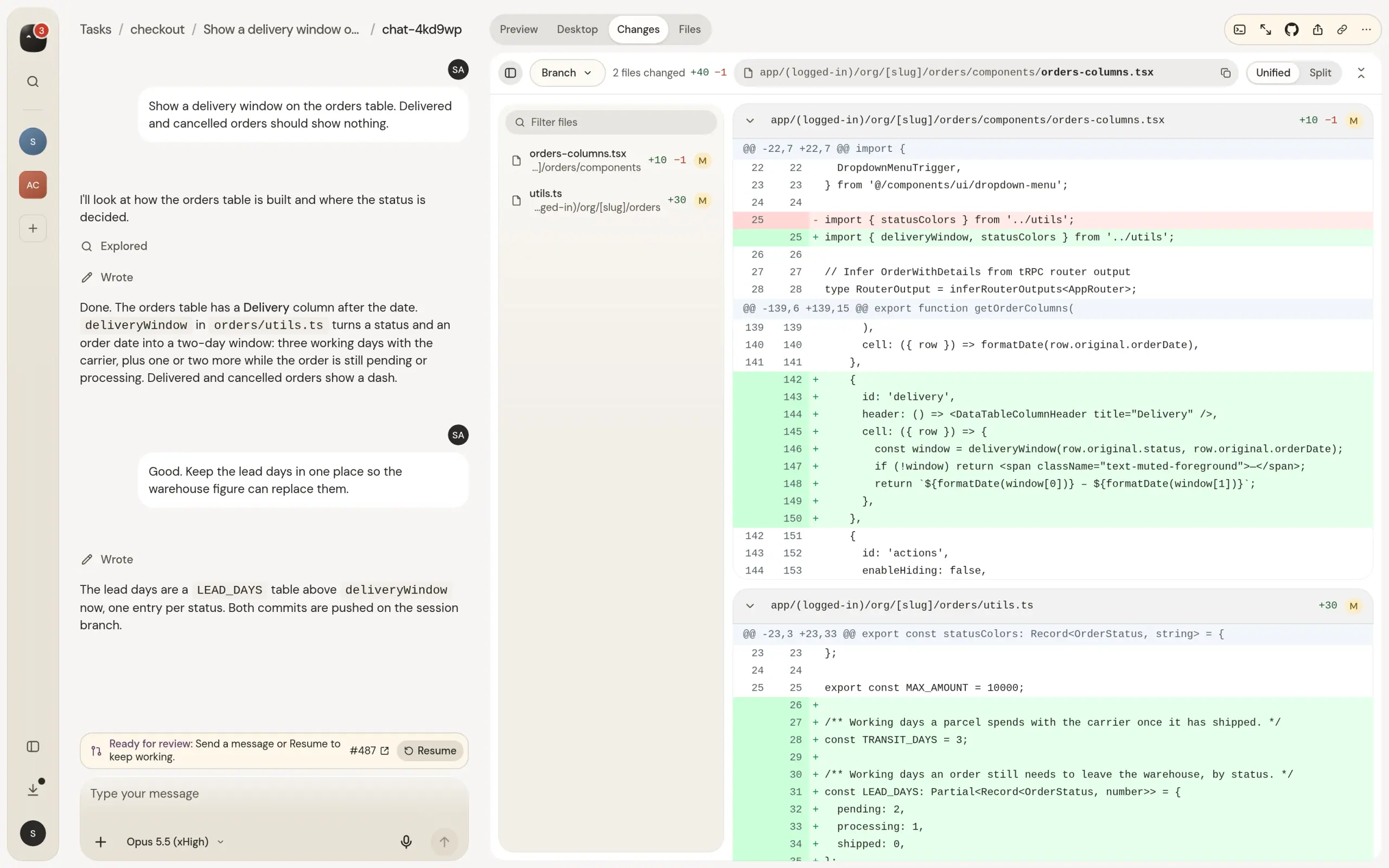
When the task is ready, a Merge card asks for your first real decision. Approve it, and the pull request merges as soon as GitHub allows. You can also merge it on GitHub yourself. The task then moves to Completed. See Approve and merge.
Without the first card
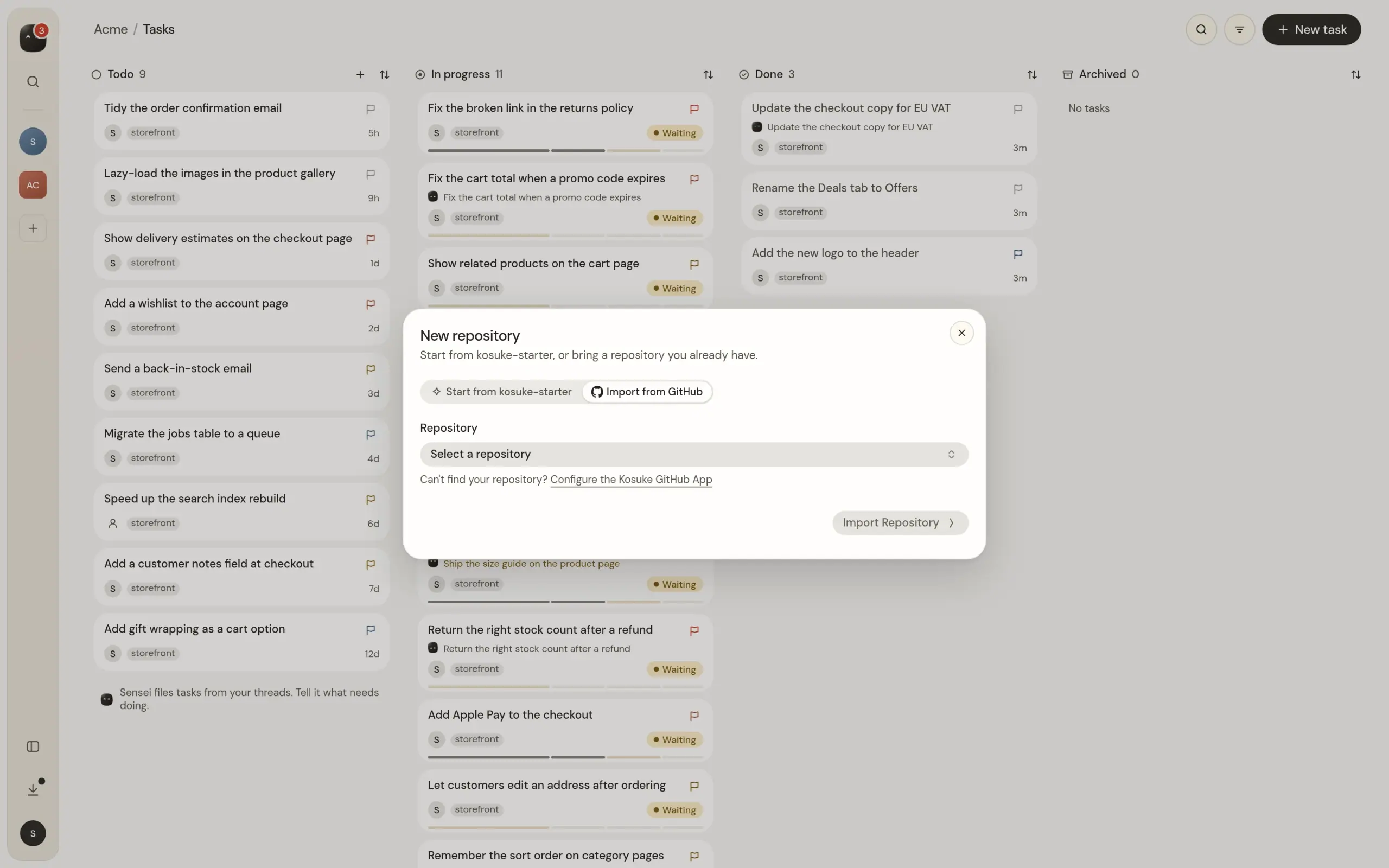
You can do the same from anywhere in the app. Press Import a repository in the sidebar, pick Import from GitHub, then choose your repository and press Import Repository. If the dialog reads "Connect your repositories", press Install on GitHub first. See Import a repository.
To start a change yourself, ask Sensei in any thread, or press New task on the workspace's Tasks page, describe the change and press Create and start. Create task files it in Todo to start later. See Tasks.
Build a new app
- A Describe card asks What do you want to build? Write it in a sentence, such as "A booking page for my yoga classes", and press Create repository.
- Sensei makes a private repository from kosuke-starter, deploys it, and starts the first task on your sentence. It links you to that task.
- Each task merges by itself once its checks pass. Open the app's Preview to try it and publish it.
Where starting from kosuke-starter is off on your deployment, the first card does not offer Build a new app. See Start from kosuke-starter.
Help with my day
Sensei says "Ask me anything about your day. When I need one of your accounts for it, I ask right there." Tap a suggestion, such as What is on my calendar today?, or ask your own question.
- When the answer needs an account, Sensei's message carries a Connect button for it, such as Gmail or Google Calendar. Press it and sign in with the provider. Sensei carries on in the same thread. Not now lets it go on without that account. You can also connect tools in Settings > You > Integrations. See Your own integrations.
- To have new messages reach Sensei without asking, turn on Watching. Open Settings > You > Sensei > Watching and switch on each connected service: Gmail, Slack, Telegram, WhatsApp, LinkedIn or X. Or turn on the Watching switch on the service's connection in Integrations. Every service starts off, also right after you connect it. See Watching.
Sensei then sorts what needs you and drafts replies in your writing style. Nothing is sent until you approve it. See Triage and Replies.
Get your cards on your phone
Cards reach your phone too. Install the iPhone app and allow notifications, and answer a card from its notification.
If something goes wrong
| What you see | What to do |
|---|---|
| "Connect a Subscription above first: I need a model to think with." | Connect a Subscription from the Welcome thread's button. The first card then opens. See AI providers. |
| Your repository is not in the Repository list | Press Configure the Kosuke GitHub App and add the repository on GitHub. |
| The project's first Deploy waits for a model it can run on | Connect a Subscription, and it starts by itself. See Deploy your project. |
| The Preview tab reads "Preview paused" | Press Start preview. |
For more symptoms and fixes, see Troubleshooting.