
Pick a model
- Open the model picker. In a session it sits in the composer, beside the Plus. In the New task modal and in a Todo task's details it is the Model row.
- Hover over a model to open its Reasoning effort menu.
- Pick an effort.
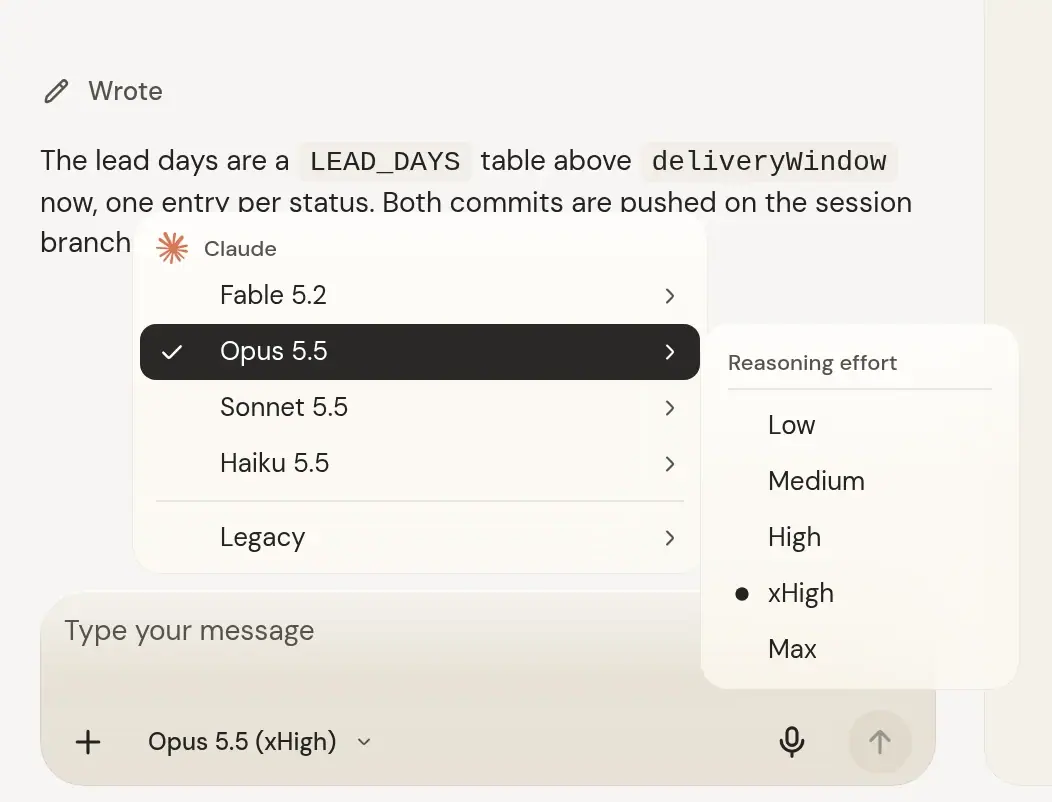
Some OpenAI models also have a Speed group under the efforts. See Choose a speed.
Workspace pickers offer models run by workspace Credentials only. Personal pickers show provider groups while you hold a Subscription. With none, only Free, with the prompts left, and Connect a subscription appear. Free reads Sensei free once selected. A login at its limit or needing reconnect still counts, including SuperGrok. Limits, reconnects and provider failures never move work to Free. Connecting the first Subscription and removing the last change personal choices from their next turn, as AI providers explains.
Tasks Sensei files
Sensei does not choose a model for the tasks it files or starts: each task runs on the Default Model of the person it is assigned to. When you name a model in your request, Sensei files the task on that model instead.
Sensei's ticket and Start cards do not show the model. To change it, use the Model row of the task.
Reasoning effort sets how long the agent thinks before it acts. A higher effort suits hard problems. A lower one is faster for mechanical edits.
Muse models run in Muse Code. Muse Spark 1.3 and Muse Ember run on every Muse Code plan. Muse Wonder Full requires Power Usage or Maximum Usage. Delegated Runs support Meta. A run sent to Meta from another provider leaves out Muse Wonder Full when the login’s plan lacks it or cannot be read. A run on the parent model keeps that model or does not start.
Gemini models run in Antigravity on your sign-in for personal work on Subscriptions, or the workspace's selected Google sign-in or Gemini API key. There is no personal method selection. Gemini 4 Argon, Gemini 4 Carbon, Gemini 4 Hydrogen and Gemini 4 Neon run on a Gemini API key, and on a sign-in Google offers them to. A limit or reconnect never crosses the credential boundary. Delegated Runs support Gemini. A run sent to Gemini from another provider uses a model its Google method can run. The Gemini default is Gemini 4 Neon when the method offers it, else Hydrogen, Argon, Carbon, else Gemini 3.8 Flash, each at High; a Gemini API key gets Neon. See Gemini.
Sensei free
Sensei free runs one fixed model staff choose. The model stays hidden. Free Delegated Runs use the parent Turn's model and Source, even when the agent names another provider or model. If a Source cannot continue, Free can move to another Source running the same model; it never changes models to escape a limit.
Grok runs chat, Sensei, Crons and Deploys, and Delegated Runs with either access. See Grok for credentials and Deploy limits.
Available models
| Provider | Model | Reasoning efforts | Context window (tokens) |
|---|---|---|---|
| Anthropic | Fable 5.2 | Low, Medium, High, xHigh, Max | 1,000,000 |
| Anthropic | Opus 5.5 | Low, Medium, High, xHigh, Max | 1,000,000 |
| Anthropic | Sonnet 5.5 | Low, Medium, High, xHigh, Max | 1,000,000 |
| Anthropic | Haiku 5.5 | Low, Medium, High, xHigh, Max | 1,000,000 |
| OpenAI | GPT 6.2 Astra | Low, Medium, High, xHigh, Max | 872,000 |
| OpenAI | GPT 6.2 Sol | Low, Medium, High, xHigh, Max | 872,000 |
| OpenAI | GPT 6.1 Terra | Low, Medium, High, xHigh | 872,000 |
| OpenAI | GPT 6 Luna | Low, Medium, High, xHigh | 872,000 |
| Z.ai | GLM 5.3 | Low, High, Max | 1,000,000 |
| Z.ai | GLM 5.3-Flash | Low, High, Max | 1,000,000 |
| Moonshot AI | Kimi K3.1 Pro | Low, High, Max | 200,000 |
| Moonshot AI | Kimi K3.1 Pro Highspeed | Low, High, Max | 200,000 |
| Moonshot AI | Kimi K3 | Low, High, Max | 200,000 |
| Meta | Muse Spark 1.3 | Minimal, Low, Medium, High, xHigh, Max | 1,048,576 |
| Meta | Muse Ember | Minimal, Low, Medium, High, xHigh, Max | 1,048,576 |
| Grok | Grok 4.7 | Low, Medium, High, xHigh | 500,000 |
| DeepSeek | DeepSeek V4.1 Flash | Low, High, Max | 1,000,000 |
| DeepSeek | DeepSeek V4 Pro | Low, High, Max | 1,000,000 |
Anthropic, GLM, Kimi and DeepSeek models run in Claude Code. OpenAI models run in Codex. Grok 4.7 runs in Grok Build and takes no image attachments. That choice decides a few things in the session:
- Skills start with
/in Claude, GLM, Kimi and DeepSeek sessions, and with$in Codex sessions. - A
/compactfocus is Claude Code's prompt for the summary. Codex compacts without a prompt, so your focus stays in the conversation's history as a note, which Codex may not follow.
GLM 5.3 and DeepSeek V4 Pro read text only, so the composer takes no image or PDF attachment on them. For images and PDFs, use GLM 5.3-Flash or a Kimi model. OpenAI models and DeepSeek V4.1 Flash read images but not PDFs, so the composer does not take a PDF attachment on them. A DeepSeek agent reads a PDF in the repository by extracting its text with a shell tool. See Messages and steering for attachment limits.
GPT 6.2 Astra and GPT 6.2 Sol are new enough that Codex learns about them only from a ChatGPT login. On an OpenAI API key they run on Codex's generic model settings until a Codex release lists them.
Kimi K3.1 Pro Highspeed needs a Kimi Code Pro membership or higher. On a lower membership, its turns fail with a message that says so. Pick Kimi K3.1 Pro instead.
Retired models sit under Legacy at the bottom of the picker, Gemini 3.8 Flash among them. A session already on one keeps running on it.
Opus 4.6 sits under Legacy too, with a 1,000,000-token context window. An Anthropic API key or AWS Bedrock runs it at the full window. A Claude Max, Ultra, Team or Enterprise login includes it. On a Claude Pro login, a session past 200,000 tokens needs usage credits on that Claude account. Without them, the turn fails with a message that says so.
Delegated Runs follow the same choice. In a paid chat session, a run that names neither a provider nor a model runs on the turn's model and effort. It never moves: when the provider reached its limit, its plan refused a run in this turn, or it cannot take the run, such as a custom agent on Gemini, the run does not start and the agent reads why. A run that names another provider, such as a review, runs on that provider only, on its cheapest model and effort that scores at most a few points below the turn's own, else that provider's strongest model, the cheaper of two equally strong ones. Strength and cost come from published benchmark scores kept in Sensei's model list: the Artificial Analysis Intelligence Index score and its cost per task, as Artificial Analysis publishes them. A model and effort with no published score is never picked. When a run names an exact model, it runs on that model and effort. In every case, there is no automatic fallback to another model or provider: if the named provider or model cannot take the run, it does not start and the agent reads why. On Sensei free, the turn and every Delegated Run of it run on the one model of their Source. AWS Bedrock, Crons, Deploys and Sensei keep their own rules.
Choose a speed
Some OpenAI models can answer faster at a higher price. Their menu has a Speed group under the efforts. Standard is the default and costs nothing extra. Ultrafast is on GPT 6.2 Astra, GPT 6.2 Sol and the legacy GPT 6 Astra; Fast is on every OpenAI model.
- Open the model picker and hover over the model.
- Under Speed, pick Fast or Ultrafast. The menu stays open.
- Pick an effort. When the session is already on that model, the speed applies at once and keeps its effort.
The model then reads, for example, GPT 6.2 Astra (High, Fast). Changing the effort keeps the speed. Picking another model goes back to Standard. Every model picker has the Speed group, so you can save a speed on a session, a Cron, your Default Model or the deploy agent.
Whether a turn gets its speed depends on the OpenAI login it runs on, as AI providers lists. A turn that cannot get it stops, and the chat says why, for example "Fast isn't available to this OpenAI account". It never runs at Standard instead. Pick Standard to run it.
Set your Default Model
Your personal Default Model applies to new Sensei threads, personal tasks and personal Crons without their own choice. Existing work with a saved choice keeps it. A Deploy without a stored model takes the first connected provider in catalog order and its catalog default model.
- Open Settings > You > AI Providers.
- Under Default Model, choose a personal model and effort while you hold a Subscription, or Free when you hold none.
The Free selection reads Sensei free. With no Subscription and no saved default, it is selected already. Connecting the first Subscription moves a Free default to that provider’s default model. Removing the last moves it to Free. Limits, reconnects and provider failures never make that move.
A workspace task uses your preferred model only when workspace Credentials run its provider, and never uses your Free choice. Otherwise workspace defaults and available workspace models apply. See AI providers.
If your Default Model's provider is not available in a workspace, settings say so, and new tasks there use an available model.
Set the Workspace Default Model
Owners and admins set the model a workspace task starts on when its Assignee has no usable Default Model of their own. A session booked to Sensei uses it too.
- Open Settings > your workspace > AI Providers.
- Under Default Model, choose a model and effort.
Tasks and Crons on Default run on the chosen model, or on an available workspace model when none was picked. If the chosen provider reaches its limit, the next Turn or Start is refused with the reset time. Choose Pick a model to select another; the saved model never changes by itself.
A new task starts on its Assignee's Default Model, whoever creates it. If you create a Backlog session without picking a model, the Model row shows "Default Model". The session's details then show its Assignee's Default Model, which it takes when it starts.
Switch model during a session
You can change the model of an Active session while the agent is idle. While a turn runs, the picker is locked.
- Open the model picker in the composer.
- Pick the new model and effort.
- Send your next message. The new model takes effect with it.
For personal or workspace models, switching within the same provider keeps the conversation as it is. Switching to another provider starts a fresh conversation for the new agent. Sensei hands it the conversation so far as text. The text carries what you and the agent said, and the branch and sandbox still hold the work. The transcript marks the switch, for example "Switched from Anthropic - Opus 5.5 (xHigh) to OpenAI - GPT 6.2 Sol (xHigh), conversation handed over".
A very long conversation is shortened for the new agent. It keeps your opening prompt and the latest exchanges. After /clear, nothing said before the clear is handed over.
Where each provider runs
| What | Providers | Where the model is picked |
|---|---|---|
| Chat sessions | Every released provider available to the task's allowed source | The composer, the New task modal or the task's Model row |
| Deploy agent | Every released provider on the work's allowed source; personal Deploys can use eligible Sensei free sources | Project settings or the Deploy Chat header |
| Sensei | Every released provider on your Subscriptions; Sensei free uses eligible Sources | Sensei's composer |
AI providers explains whose credentials run each one.
Reassigning a workspace task keeps its workspace Credentials. See Chat sessions and tasks. The API and the CLI name models by id. See the models reference.